Tabular Editor 2 — The Free Power BI Tool You Didn't Know You Needed


The moment I counted sixty measures waiting to be manually copied, I knew there had to be a better way.
Working in a team on Power BI projects sounds great in theory — everyone builds brilliantly in isolation, visuals looking sharp, measures working perfectly. Until that one painful moment arrives where it all needs to come together in a single file. I had sixty-plus calculated columns and measures across three visuals, one deadline, and absolutely zero intention of doing it manually. My lazy self wouldn’t allow it!
Spoiler: there was a better way. That's how Tabular Editor walked into my life.
One would say we could do my work in the shared workspace in the Power BI Service. Yes, that does work. But what if same purpose can be achieved while working in desktop itself. Tabular Editor 2 does the same work and much much more.
Getting Started with Tabular Editor 2
Before anything else, you need to get Tabular Editor 2 installed and connected to Power BI Desktop. The good news — it's free, lightweight, and takes less than five minutes to set up.
Head over to the official Tabular Editor website and download the latest version of Tabular Editor 2. The installation is straightforward — next, next, finish — nothing complicated there.
Tabular Editor 2.x is a lightweight application for quickly modifying the TOM (Tabular Object Model). It is a tool that lets you easily manipulate and manage measures, calculated columns, display folders, perspectives and translations in Analysis Services Tabular and Power BI Semantic Models. The tool was originally released in 2016 and can be downloaded for free. Once installed, open your Power BI Desktop file.
Here's where it gets interesting — you don't need to go hunting for it. Power BI Desktop automatically detects Tabular Editor as an external tool and surfaces it directly in the External Tools ribbon at the top. A single click is all it takes to launch it.

So coming to my problem, what was it and how did I solve it. As I mentioned previously, I was working with a group of people and all of us were working individually on our local files and in the end all of us had to put our visuals in one pbix file. I ended up creating sixty plus calculated columns and measures for just three visuals. Ya ya I know I should have optimized my calculations and the model could have been leaner — but that's a conversation for another time. So the basic approach was to create a new measure or calculated column in the destination file and copy your formula in it. That being said, for sixty plus fields that’s no small task. But with help of Tabular Editor the same objective can be achieved in very few simple steps.
Steps to transfer your measures and calculated columns between files:
Open both your pbix files.

Then go to External Tools ribbon, click on the Tabular Editor in both the files. A new window opens up within it you can see clean tree-view of your entire data model — tables, measures, calculated columns, relationships, role, etc. within that specific Power BI report.
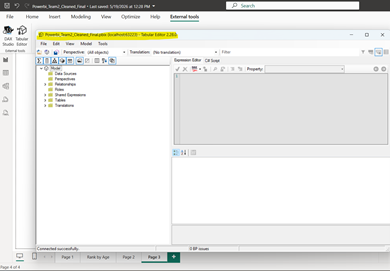
We can see the power BI report structure reflected here.
In both Tabular Editor windows, expand the Tables folder and navigate to the specific table containing your calculated columns and measures. Do the same for your destination table, then arrange both windows side by side for easy reference.

If your calculated fields are arranged in a folder like mine as seen in the above picture, the just select that folder, press Ctrl + C on your keyboard and the click on the destination table and press Ctrl + V and folder is successfully copied in the destination file.

Alternatively if you have not stored your calculated fields in a single folder, you can select individual fields by Ctrl + Click and follow the copy paste procedure as above.
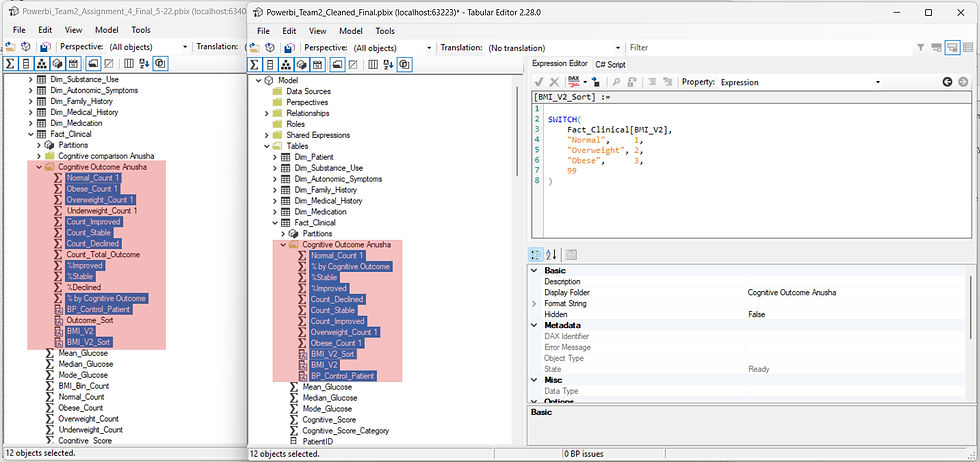
6. After that you need to save the changes in the Tabular Editor . There you go your whole folders with all the measures and calculated columns magically appears in the Power BI file. If for some reason you cant see the new fields, just use the Refresh button present in the Home ribbon.

7. Now the main calculations are present in the new file, you can just copy the visuals from the main file to the destination file.
There you have done it.
At a basic level, Tabular Editor helps here because it works with the metadata rather than the data itself, meaning some editing tasks become immediately quicker the moment you connect it to your dataset. Renaming objects, reorganizing your model, adding descriptions to measures — all of these feel snappy again.
Tabular Editor 2 offers a bunch of other features. One of them is bulk formatting. Like fix indents, line breaks and Transferring measures is just the beginning. Tabular Editor 2 comes packed with features that make day-to-day model management significantly smoother — bulk DAX formatting being one of the most practical ones. No more manually fixing indents, line breaks, and spacing across dozens of measures.
Using it is just as simple. Multi-select your measures or calculated columns with Ctrl + Click, apply the built-in Format DAX function, and Tabular Editor handles the rest — uniformly formatting every selected field in one shot.


Beyond DAX formatting, Tabular Editor also lets you adjust decimal places and move calculated fields between tables — small but frequently needed tasks that are surprisingly tedious to do natively in Power BI Desktop.
Because Tabular Editor manipulates the metadata instead of the underlying data and you can bypass data-loading delays.
Unlike native measure creation in Power BI, Tabular Editor allows you to undo and redo actions.
Instead of waiting for Power BI to process each individual measure one by one, you can save and process multiple measure changes in a single batch.
Tabular Editor 2 is one of those tools that once you start using, you genuinely wonder how you managed without it. What started as a solution to a tedious merging problem turned out to be a gateway to a significantly better way of managing Power BI data models altogether. Whether you are transferring measures between files, bulk formatting DAX code, or simply building and organizing your model more efficiently — Tabular Editor handles it with a speed and simplicity that Power BI Desktop alone cannot match.
If you work with Power BI regularly, adding Tabular Editor 2 to your toolkit is not just a nice to have — it is a genuine productivity upgrade. Give it a try, and your future self will thank you.
References: