Jira for Beginners: How to Use Jira Step by Step

Introduction
If you’re new to project management tools, learning Jira as a beginner can feel overwhelming at first. But don’t worry this guide will walk you through everything step by step in a simple way.
Jira, developed by Atlassian, is one of the most popular tools used by teams to manage tasks, track progress, and collaborate efficiently.
By the end of this blog, you will understand how to use Jira and create your first project.
What Is Jira?

Mastering the Workflow: An In-Depth Look at Jira
In the modern professional landscape, Jira stands out as the gold standard for project management and issue tracking. Developed by Atlassian, it is a versatile platform engineered to help teams streamline operations from the initial planning stages to final delivery.
While it is globally recognized as the go-to tool for Agile teams, its flexibility makes it accessible for beginners who need simple, reliable task tracking.
The Three Pillars of Jira
Plan: Teams can create tasks and user stories, organize a backlog of work, and define specific sprint goals.
Track: The software provides visual workflows, such as Kanban or Scrum boards, to monitor progress and see real-time status updates.
Manage: Managers can assign responsibilities, improve team collaboration, and generate detailed reports like Velocity or Burndown charts.
Why Teams Prefer This Tool
Software Development: It is widely used by Agile teams for bug tracking and managing software release cycles.
Task Management: Beginners can utilize it for basic task organization and individual project tracking.
Reporting: The platform provides data-driven insights to help teams optimize their performance and identify bottlenecks.
Whether you are a developer pushing code or a project manager overseeing a product launch, Jira provides the structure needed to turn chaotic work into a streamlined process.
Key Terms You Should Know
Before jumping in, understand these basics:
Jira is widely used in professional environments to manage complex workflows, but mastering it begins with understanding its core terminology. Here are the essential terms you need to know before you start:
Issue: A single, trackable unit of work, such as a "Fix login bug" task or a "Write documentation" requirement.
Project: A organizational container that groups related issues together, often representing a distinct product, team, or goal.
Epic: A high-level body of work that captures a large, overarching goal. Epics are broken down into smaller, manageable issues.
Sprint: A time-boxed work cycle, frequently used in Agile methodologies, during which a team commits to completing a specific set of tasks (typically 1–2 weeks long).
Board: A central visual interface—like the Scrum or Kanban board shown below—that provides visibility into the status of all work items within a project.

Visualizing the Workflow: The Jira Board
The primary purpose of a Jira board is visualization. It allows teams to see exactly where any given task stands.

Work flows from left to right, transitioning between sequential columns as progress is made:
TO DO: The backlog of prioritized tasks waiting for assignment.
IN PROGRESS: Tasks that are currently being actively worked on by team members.
IN REVIEW: Completed tasks that require validation, code review, or QA testing before they can be finalized.
DONE: Finalized tasks that have met the acceptance criteria and are completed.
By simply dragging and dropping an issue card between these columns (represented professionally by the mouse pointer moving an 'In Progress' card in the image), team leads and stakeholders receive an immediate, real-time update on the project’s health and the team's velocity.
Step-by-Step Guide to Getting Started
1. Create Your Account
Begin by visiting the Jira website and signing up for an account. Atlassian offers a free tier that includes essential task tracking features for small teams and individuals.
Once logged in, you’ll land on a clean, centralized dashboard where all your projects and activities are managed.

2. Launch Your First Project
After logging in, click “Create Project” from the main navigation. You’ll be asked to choose a project template based on your workflow:
Kanban – Ideal for continuous workflows and beginners due to its simplicity
Scrum – Best suited for teams working in structured, time-boxed iterations (Sprints)
Pro Tip: Start with Kanban if you want a simple, visual workflow without complex configuration.

3. Populate Your Backlog (Add Tasks)
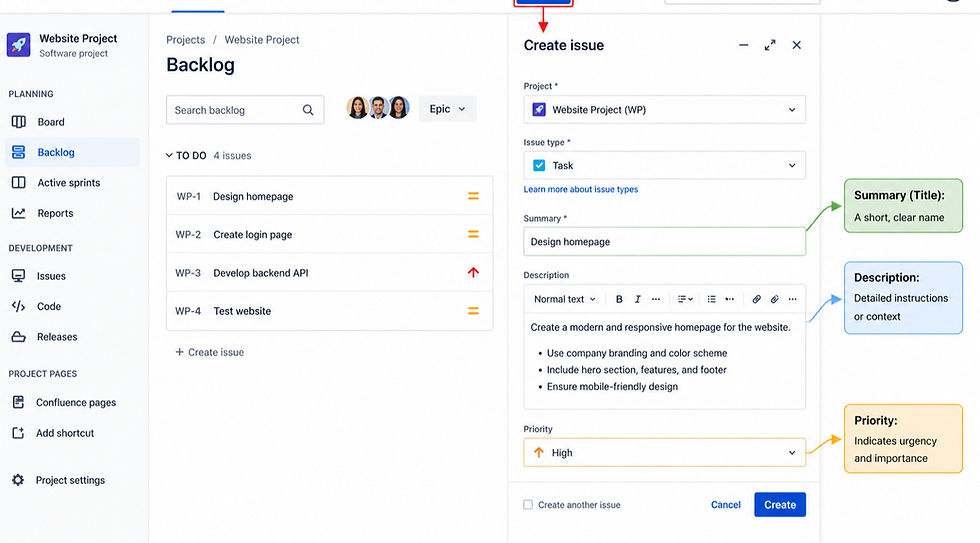
In Jira, each task is called an Issue. To create one, click the “Create” button at the top.
Fill in the following details:
Summary (Title): A short, clear name
Description: Detailed instructions or context
Priority: Indicates urgency and importance
4. Organize and Move Tasks
New tasks appear in the “To Do” column by default. Jira boards use a simple drag-and-drop system:
To Do: Tasks ready to be started
In Progress: Tasks currently being worked on
Done: Completed and verified tasks

A Kanban board in Jira shows tasks organized into three columns: "To Do," "In Progress," and "Done." A task titled "Draft API Specs" is being moved from the "To Do" column to "In Progress," indicating a workflow update.
5. Assign Responsibilities
To ensure accountability, open any task to access its detail view:
Assignee: Person responsible for the task
Due Date: Deadline for completion
Comments: Space for collaboration and discussion

6. Monitor Project Health
As tasks move across the board, Jira provides a clear overview of your project’s status. You can:
Identify bottlenecks quickly
Track team workload
Monitor overall progress

Jira vs Other Tools
1.JIRA: Structured issue tracking system
Compared to Trello and Asana, Jira offers:
More advanced tracking – better for managing complex tasks
Better reporting – gives useful progress insights
Strong Agile features – supports Scrum and Kanban workflows
2. Trello: Visual post-it board (simple drag-and-drop cards)
Trello is owned by Atlassian (the same company that makes Jira), but it’s the "light" version. It’s essentially a digital board of sticky notes. It’s great for beginners because there are no complex menus, but it lacks the heavy-duty reporting a growing software team needs.
3. Asana : Organized to-do list with collaboration (tasks + timelines + team coordination)
Asana excels at "work management." It’s prettier and more user-friendly than Jira, making it a favorite for creative agencies and marketing teams. However, it doesn't handle technical bug tracking or complex development cycles quite as natively as Jira does.
Conclusion
Learning Jira is a resume-building skill. Once you get comfortable with the interface, you aren't just using a tool; you're learning how professional organizations around the world manage their most important goals.
Mastering Jira becomes easier with consistent, hands-on practice rather than theory alone. By working through real tasks, you develop a clear understanding of how projects, issues, and workflows are structured.
Practical usage builds confidence faster than reading documentation
Understanding the issue lifecycle (create → update → transition → done) is key
Regular interaction with boards improves workflow visualization skills
Assignments and due dates help simulate real project environments
Small, repeated exercises reinforce core concepts effectively
Exploring features gradually prevents overwhelm
Start small, practice daily, and soon you'll be managing complex projects like a pro.
Overall, Jira shifts from a complex tool to a structured system for managing work efficiently, making it highly valuable for both individual and team-based projects.