Data to Insights: A Practical Guide to Tableau Visualization

Before getting into the topic lets first know what is Tableau and Why it is used?

What Is TABLEAU?
Imagine you are a manager at a growing company. Every day, information comes in from different places sales reports, customer feedback, website visits, and financial records. Soon, you have thousands of rows of data in the form of spreadsheets and databases.
Looking at all this raw data feels like trying to read a huge pile of puzzle pieces without seeing the full picture.
This is where Tableau comes in.
Tableau acts like a skilled guide. It connects to all your data sources, gathers the information in one place, and helps organize it neatly. Instead of staring at endless rows and columns, Tableau turns the data into colorful charts, graphs, and interactive dashboards.
Suddenly, the puzzle pieces come together. You can quickly see which products are selling the most, where customers are coming from, and which areas need improvement. With just a few clicks, you can explore the data from different angles and uncover valuable insights.
In simple terms, Tableau helps transform messy, raw data into clear visual stories, making it easier for people to understand information and make smarter business decisions.
When and Where TABLEAU Is Used?
Tableau is best used in scenarios where data preparation is a critical step before conducting analysis or creating visualization. Some of this situation where tableau is particularly used is like when we need to combine multiple data sources.
When our data requires cleaning, standardization or transformation then we use tableau because it provides tools to address these issues like missing values, handling duplicates, handling outliers and inconsistency.
If our data structure is messy or unstructured, when dealing with this type of data we need to first organize or structure our data to a meaningful analysis so we use Tableau.
When an additional data needs to be added to an existing dataset or a purpose like data enrichment or to provide more context or enhance our analysis we use Tableau.
When we have any kind of specific analysis or visualization in the data and that cannot be done on the original dataset and we know what kind of pre-processing or what kind of reshaping of our dataset can be done or what kind of aggregations can be performed then we can get our visualization that is been in our mind and what we demand, in those cases we can use Tableau.
When we work with large volume of datasets, Tableau can help streamline the process of cleaning and shaping the data to improve performance in Tableau desktop.
There is automated data cleaning and preparation workflows so when we need to create repeatable data preparation workflows that can be scheduled for a regular update. Basically when we need to maintain up to date datasets we can use Tableau.
When we need to properly document our pre-processing steps, where it is important to maintain transparency and documentation of data preparation process including the steps taken the transformations applied and the data lineage at those time we use Tableau.
When the data quality is critical for data analysis Tableau provides tools to address and identify the issues that could impact the integrity of insights.
When we want to streamline the process of preparing the data before visualizing, we use Tableau.
When we need to quickly understand the distribution the patterns and the quality of data before diving into the analysis, when the data needs to be pre-processed and transformed to feed into machine learning modules or any advanced modern algorithm models we use Tableau.
Deeper Into Tableau:
So, Tableau is designed to help everyone quickly and confidently combine, shape and clean their data for analysis.
The direct visual experience gives you a deeper understanding of your data and smart experiences makes data preparation easier and more accessible.
Tableau is built around three coordinated views:
A data grid to see your row level data.
A profile panel to see profiles of each column
A flow pane to understand our entire data preparation process.
Raw Data to Insights:
Now, Lets dive into what Tableau does with Data, why it matters and some real world data workflow examples.
In Most of our datasets, our main role is not only to analyze the data but also to understand the insights clearly. So, what I mention here as understanding insights is to explore messy datasets, identify trends and also to present it in a way others understand.
All the above can be done in Tableau. Using Tableau for turning data into insights, has so many advantages like:
It transforms complex data into clear, interactive visualizations that anyone can understand.
It helps users quickly uncover trends, patterns, and insights without needing advanced technical skills.
It turns raw data into meaningful information, enabling faster and smarter business decisions.
It connects to multiple data sources and presents information through easy-to-use dashboards and reports.
It makes data analysis accessible to both technical and non-technical users.
Step by Step In Tableau:
1. Connect to Data:
Connect to Excel files
Connect to databases
Connect to cloud platforms
Connect to other data sources.
2. Prepares and Organizes Data:
Clean the data
Combine the data
Structure the data for analysis
3. Analyzes Information:
Exploring data to find trends
Find patterns, relationships
Explore unusual results
4. Creates Visualizations:
Converts data into charts
Convert data into graphs
Convert data into map
Convert data into other visual representations
5. Builds Interactive Dashboards:
Multiple visualizations can be combined into a single dashboard
Users can filter and explore information
6. Shares Insights:
Dashboards can be shared with teams to support decision-making
Reports can be shared for better visualizing
Real Time Example for Better Understanding:
Let’s see a very practical Example, Imagine a Retail Superstore which handles thousands of Sales every day. When we look at the raw data sheet, we cannot find out much on the sales.
In this case, Tableau can,
Show which products sell the most.
Identify the best-performing regions.
Track monthly sales trends.
Highlight products with declining sales.
Instead of reading thousands of rows of data, we can view a dashboard and understand the business performance in seconds.
How To Create Insights in Tableau:
The easiest way that we use in Tableau than other visualization methods is drag-and-drop interface, which makes creating visualizations simple and intuitive. This is considered as one of the most important advantages of Tableau.
Instead of writing complex code or formulas, users can build charts and dashboards by simply dragging data fields and dropping them onto the workspace. Tableau automatically suggests the most suitable visualization based on the selected data.
How It Works:
For example, suppose you have sales data with columns such as:
Product Name
Sales Amount
Region
Date
To create a chart, you can:
Drag Region to the Rows shelf.
Drag Sales Amount to the Columns shelf.
Tableau instantly generates a chart showing sales by region.
With a few more drag-and-drop actions, you can add filters, colors, labels, and additional metrics to make the visualization more informative.
Benefits of the Drag-and-Drop Feature:
No coding required for most visualizations.
Saves time when building reports and dashboards.
Easy for beginners to learn and use.
Encourages data exploration by allowing users to quickly test different views of the data.
Creates professional visualizations with minimal effort.
Popular Chart Types In Tableau:
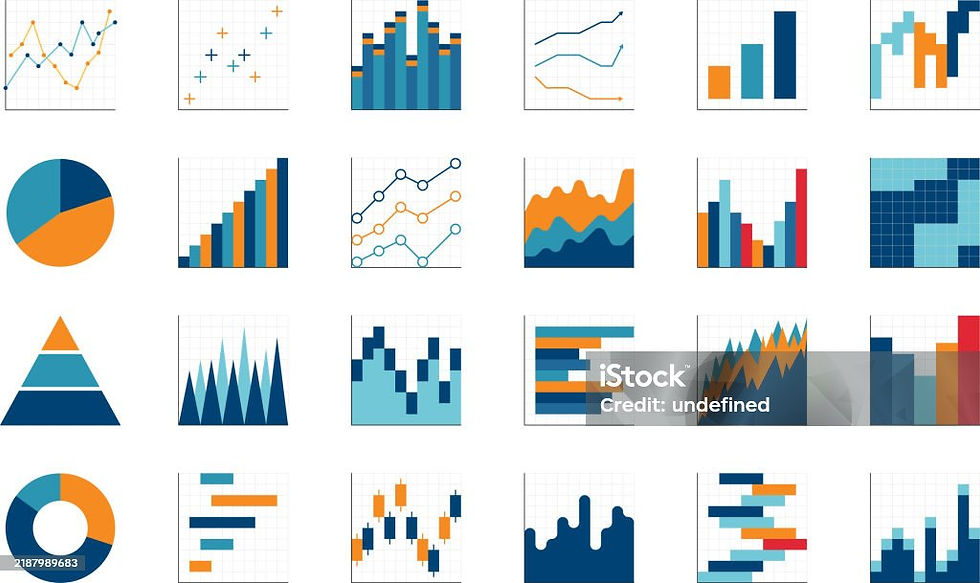
There are wide variety of chart options available in Tableau for visualization. Let’s discuss some of the most common types of charts and when it can be used for building insights.
1. Bar Charts:
Compare values across different categories
Ideal for comparing sales, profits, customer counts, and other metrics.
Example: Comparing sales performance across different regions.
2. Line Chart:
Show trends and changes over time
Used to track growth, revenue, or performance metrics.
Example: Monitoring monthly sales trends throughout the year.
3. Pie Chart:
Display how individual categories contribute to a whole.
Example: Showing the percentage contribution of each product category to total sales.
4. Scatter Plot:
Help identify relationships and correlations between two numerical variables.
Example: Analyzing the relationship between advertising spend and revenue.
5. Area Chart:
Highlight trends over time while emphasizing the volume or magnitude of change
Example: Tracking cumulative website traffic over several months.
6. Map Chart:
Mapping capabilities allow users to visualize geographic data.
Example: Displaying sales performance by country, state, or city.
7. Heat Map:
Use colors to represent data values
Easy to identify patterns and high- or low-performing areas.
Example: Visualizing product sales performance across different regions.
8. Treemap:
Display hierarchical data using nested rectangles of varying sizes and colors.
Example: Showing product categories and their contribution to total revenue.
9. Histogram:
Show the distribution of numerical data by grouping values into ranges.
Example: Analyzing customer age distribution.
10. Bubble Chart:
Uses circles of different sizes to represent multiple data dimensions.
Example: Comparing products based on sales, profit, and market share simultaneously.
Advantages of Using Charts:
These chart visualizations help users:
Identify trends and patterns.
Compare categories quickly.
Discover relationships between variables.
Analyze geographic information.
Present insights in an engaging and easy-to-understand format.
Step By Step Workflow in Tableau:
1. Connect to Data: Imports data from an excel or dataset into Tableau.
2. Prepare and Clean the Data: helps users check for missing values, duplicate records, or incorrect data formats.
3. Explore the Data: Begin examining the data to understand what information is available.
4. Create Visualizations: Using Tableau's drag-and-drop interface, users build charts and graphs.
5. Build an Interactive Dashboard: Multiple charts are combined into a single dashboard.
6. Analyze Insights: Review the dashboard to identify trends and opportunities.
7. Share the Dashboard: The completed dashboard is published to Tableau Server or Tableau Cloud for others access.
Do’s And Don’ts in Tableau:
Do’s:
Keep dashboards simple.
Use appropriate chart types.
Apply consistent colors.
Add interactive filters.
Optimize performance.
Validate data accuracy.
Focus on storytelling.
Don't:
Overcrowd dashboards.
Use misleading visualizations.
Overuse colors.
Ignore dashboard performance.
Include unnecessary information.
Skip testing and validation.
Conclusion:
Tableau has become one of the most powerful and widely used tools for data visualization because it makes complex data easy to understand. By transforming raw information into interactive charts, graphs, and dashboards, Tableau helps users uncover trends, identify patterns, and gain valuable insights quickly.
In today's data-driven world, Tableau does more than just create charts it helps turn data into meaningful stories that support better decision making and business growth. By presenting information in a clear and interactive format, Tableau empowers users to discover insights that might otherwise remain hidden in raw data.