Build A Homepage for AI Job Analysis Using Tableau Dashboard. (Part-2)

Introduction
In My Part -1 of AI JOB ANALYSIS PROJECT, we have seen and analyzed the data how AI Impacted the Job in various industries in the way of Salary, Experience level, educational level and Work mode across the country in various forms. Here in Part -2 let’s see I have a projected my home page for the project I have analyzed.
In Modern World of Analytics isn’t just about building dashboards, it’s about designing the experience. As our tableau environment users can easily feel lost jumping between workbooks, KPIs, and reports. A well‑designed Homepage paired with intuitive navigation transforms our dashboards into a cohesive, app‑like product that users love returning to.
This blog tells us why we need a homepage, what to include, and how to build clean, scalable navigation patterns that elevate our entire Tableau environment.

Purpose of Home Page in tableau
A home page is an entry way for all visualization perspective. It Gives us clear idea for the Users or Customers or stack holders to understand what it means and overview of a website. Instead of dropping users into a random dashboard or forcing them to analyze through Tableau Server a homepage gives us:
Provides a single-entry point for all dashboards
• Reduces confusion and improves adoption
• Highlights key KPIs, updates, and announcements
• Organizes dashboards by role, function, or workflow
• Creates a polished, branded experience that feels intentional.
Anyway What is Tableau Homepage ?
Think of it like the home screen on your phone.
Instead of swiping through random apps, you get a clean layout with:
• Big buttons
• Clear labels
• Easy navigation
A Tableau Homepage does the same thing for your dashboards.
Core Elements of an Effective Tableau Homepage
Step 1:
Open the Tableau DESKTOP/Public upload the DATA SET I have used my Part 1 Project for Creating a Home page we can use depending on the requirement.
I Uploaded Video of my Part 1 Dashboard and Video for Better Understanding.
Step 2
Open one dashboard tab and Name it as ‘HOME PAGE’.

Step 3
Set The background Image for the Home Page to Look by selecting any color or image. Depending on requirement we can customize the Background. I have selected below

Step 3
A Clear Title & Purpose Statement
Users should instantly understand what this analytics or Project for:
I have Given my Title as “GLOBAL AI JOB ANALYSIS TREND”

Step 4
Containers Creation
Create a Containers I have created 2 Vertical containers

Steps 5
Navigation Tiles or Buttons
Navigation Button is the Heart of our home page
It is mainly used to Navigate from One page /Dashboard to other also used for Over view Purpose like
KPI Overview
• Financial Performance
• Operational Metrics
• Workforce Planning
• Patient Outcomes
• Forecasting & Scenario Models
Tiles include icons, color coding, or short labels to make scanning effortless
In the Left Side Corner, we have a Navigation Button Depending on the Tabs we can Include navigation buttons in one of the vertical containers which we have created.

Navigation Button can be in Image or Text Depending on our Design need we can Create I have Selected Both Image and Text. So, That I have Included two Vertical Container one for Image and other for text as shown below.
Use a consistent tile size grid, for a clean layout.

Step 6: Add Icons or Image
Icons help users instantly recognize categories.
Examples:
• KPIs
• Clinical Metrics
• Finance
• Workforce
This improves usability and reduces cognitive load. Depending on my project I have used icons like AI JOB Overview, AI JOB COUNT, AI JOB SALARY, AI WORK MODE, TOP 10 AI ANALYSIS.
Right click the Navigation button -->Edit button -->Navigate to page we need -à select Text /Image -->change Background include tool tip .


I have selected the image for the Button style.
Use Flat icon website for clear icon without background. Attached the link below.
Once the image uploaded for all the navigation button you will see Home page like below :

Same steps to follow for text navigation button Right click the button --->edit Button-->Change button to text.

Once the Text and Image button added to navigation click on the container arrow click Distribute the content equally.
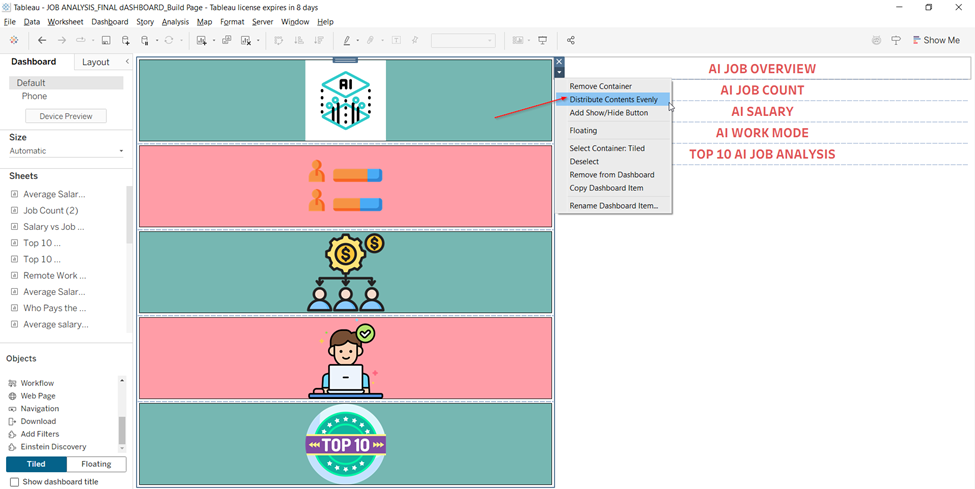
The content Distributed equally, we can see the text and image button shares even space for formatting.

After the navigation button alignment add some Blank Space for alignment and adjust the space depending on our needs and visual treat .

Finally, the formatting and alignment done ,our home Page will be half presentable. we have just created home page view for front page we have to do navigation for entire dashboards which is take to different navigations pages from homepage.

Entry Page

STEP :7
Navigation to Home Page
Once the Home page design done , lets move on to the content pages which we created and segregated depending on the field .
I have done individual dashboards by chart content .lets move on to the AI OVERVIEW page. lets build the home page button
Downloaded homepage icon from https://www.flaticon.com/icons


Include an navigation button top right corner of an page and Click Edit button and include the image of the icon and select Navigation to HOME PAGE .
Home page Icon appear on the right side .
If u click the home page icon it take you to the Main entry page.

Step 8
Multi‑Level Navigation
Final Step is the creating the multilevel navigation .
For complex projects :
Homepage → Category Page → Dashboard
Example:
AI Overview ----->AI SALARY page----> Dashboard .This keeps things organized as your content grows.
Sidebar Navigation
A vertical menu on the left with icons and labels.
Great for dashboards with many pages.
These Navigation helps us to switch between the pages and content we need to explore or analyze .
Procedure to create the Sidebar Navigation is same as Home Page Navigation but here we need to create an Containers . 1 Horizontal and 2 vertical containers for Image and text . I have selected only image navigation .Same Steps like 6 .

Side Bar Navigation for Dashboard

Project Presentation:
To view the Complete action of my AI JOB ANALYSIS PROJECT HOME PAGE ,Check out my attached link and video representation for clear view .
Project Link
Home page Video
Impact of Well Designed Homepage
Organizations or industries that implement a homepage and structured navigation often see:
Higher dashboard adoption
Fewer “Where do I find…?” questions
Faster decision-making
A more professional analytics experience
Better alignment across teams
User friendly .
Final Thoughts
End of my project presentation in home page view . A homepage is one of the simple and most transformative upgrades we can make to our Tableau. It sets the tone, guides users, and elevates your dashboards from “reports” to a polished, intuitive analytics application and here i have used for analysis of AI Job same thing you can explore If you’re building dashboards for executives, clinicians, operations teams, or any audience that values clarity and speed,
"Building an homepage is not an optional it’s essential"