XLOOKUP vs VLOOKUP: Which one should you be using?

Updated: Jun 5
By: Vyshnavi Andhavarapu
How VLOOKUP works
For as long as I can remember, VLOOKUP has been a standard feature in Excel. It returns a value from a column to the right after searching for a value in the range's first column. VLOOKUP was likely your first choice if you've ever needed to transfer data from one table to another, and for good reason. It is simple, reliable, and effective in the majority of daily situations.
Use this macro to practice
=VLOOKUP(lookup_value, table_array, col_index_num, [range_lookup])
This is what each argument means:
lookup_value is the value you're looking for (such as an Employee ID like E003)
table_array is the range of data where the lookup should occur (it must begin with the column you're looking for)
col_index_num is the column number in that range that contains the value you want returned
range_lookup is TRUE for an approximate match and FALSE for an exact match (you almost always want FALSE).
Data
The dataset I'm using has Employee IDs in column A, Employee Names in column B, and Department in column C. Below that, a second table holds Country, Region, and Phone Code data.

To look up the department using Employee ID:
In this case, I'm using =VLOOKUP(E1, A2:C6, 3, FALSE). I'm instructing Excel to look for the value in E1, search column A of the range A2:C6, and return the Department value found in the third column of that range. It rightly returns HR because I'm searching for E003.

To look up the phone code by country:
Here, the same reasoning holds; it simply refers to the second table. Observe that the lookup column (Country) must be the leftmost column in your range for VLOOKUP to work. One of its main drawbacks is that in order for it to function, your data must be organized in a certain way.

VLOOKUP with IFERROR (use when ID doesn't exist):
VLOOKUP returns a #N/A error when a lookup value is missing from the table, which appears clumsy in a report. You can replace that with a more readable message by wrapping it in IFERROR, such as "Employee not found." When creating spreadsheets that will be used by others, this is a minor but crucial practice.

VLOOKUP Advantages
All Excel versions are compatible with VLOOKUP, so it won't cause any problems whether you're using Excel 2010 or exchanging files with coworkers on previous versions.
With just four arguments and a straightforward syntax, the structure is simple to learn and suitable for beginners. It can be learned in a single session by most people.
Widely documented: There is a Stack Overflow solution, a YouTube instructional, or a Microsoft support article that addresses any issue you encounter.
VLOOKUP Limitations worth knowing
You cannot retrieve a value from a column that is located to the left of your search column; it can only look to the right.
Because the col_index_num is hardcoded as a number, it breaks when you add or remove columns from your table.
If the same ID appears twice, you will never see the second result because it only returns the first match.
How XLOOKUP works
Although XLOOKUP and VLOOKUP are often mistaken, their architectures differ significantly. Its objective is to completely isolate the lookup range from the return range, allowing you far greater flexibility in the structuring of your data. XLOOKUP, which debuted in Excel 2019 and Microsoft 365, was created to solve almost all of the issues analysts experienced with VLOOKUP.
Use this macro to practice
=XLOOKUP(lookup_value, lookup_array, return_array, [if_not_found])
This is what each argument means:
lookup_value is what you're looking for; lookup_array is the single column (or row) to search in
return_array is the column (or columns) you want returned
if_not_found is optional, although you can enter a custom message here instead of requiring a separate IFERROR wrapper.
Look up the department by Employee ID:
Given =XLOOKUP(E1, A2:A6, C2:C6), there is no column counting because the lookup range and return range are entirely distinct.
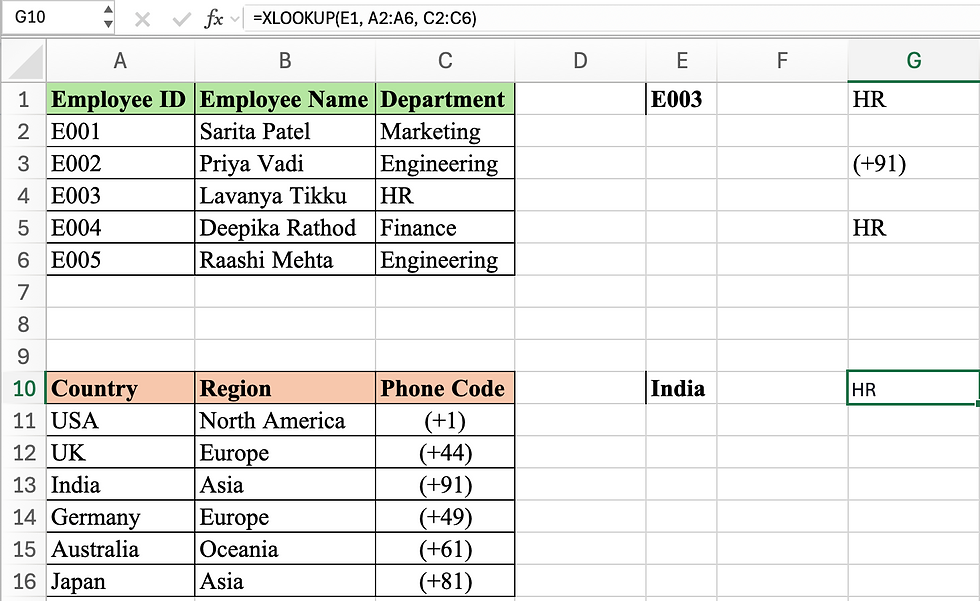
Look up both the name and the department in one formula:
This is where XLOOKUP truly shines. A single formula can return the Department and Employee Name simultaneously by setting the return_array to B2:C6. You would need two different formulas to do this with VLOOKUP.

XLOOKUP has built-in error handling:
You can put your backup message as the fourth argument (=XLOOKUP(E1, A2:A6, B2:B6, "Employee not found") rather than wrapping it in IFERROR. One less nesting layer to be concerned about.

Look up phone code by country:
In contrast to VLOOKUP, XLOOKUP manages this just as neatly and does not require that Country be the leftmost column in your range. You can return from any column and look up from any column.

XLOOKUP Advantages
It can look up, down, left, or right. Column order no longer limits you.
It saves a ton of time when creating dashboards or summary tables because it may return several columns in a single formula.
Because the return range is a direct reference rather than a hardcoded integer, adding or removing columns won't affect your formulae.
Cleaner and easier-to-read syntax makes it obvious what is being looked up and what is being returned when someone else opens your file and reads the formula.
Faster performance with big datasets: When dealing with tens of thousands of rows, XLOOKUP's more effective search algorithm is crucial.
So when do we use which?
VLOOKUP is your sole choice if you're using Excel 2016 or earlier, and it works well for simple lookups. However, there is no longer much of a purpose to use VLOOKUP by default if you have access to Microsoft 365 or Excel 2019.
When your spreadsheets are shared with a team or get bigger over time, XLOOKUP is more readable, less brittle, and more gracefully handles edge circumstances. Because XLOOKUP doesn't rely on positional column numbers that change as the data structure changes, I've found that using it reduces the amount of problematic formulae I have to troubleshoot.
Nevertheless, VLOOKUP is here to stay. Maintaining older spreadsheets and comprehending the development of Excel's lookup capabilities both benefit from knowing how it operates. Consider XLOOKUP the upgrade; once you understand why it was created, it's a superior tool rather than a replacement to be afraid of.


