Unlocking the Power of Dashboard Actions in Tableau
Dashboard actions in Tableau play a crucial role in boosting user interaction and offering deeper insights into your data. By mastering the essential elements of dashboard design and leveraging different types of actions, you can craft an engaging and dynamic experience that facilitates informed decision-making. In this article, we’ll guide you through the process of creating your own dashboard actions in Tableau, covering everything from filter and highlight actions to navigation and sheet actions. Whether you're a Tableau beginner or aiming to enhance your skills, this guide will help you fully harness the power of your dashboards.
Dashboard actions enhance the user experience by controlling how different elements interact during data exploration. The key types of actions include filter actions, highlight actions, and URL actions. Filter actions narrow down the displayed data based on user selections, while highlight actions visually highlight related data points. URL actions enable the creation of links to external content, providing users with access to further resources or detailed information relevant to the dashboard elements.
Creating Engaging Dashboard Actions in Tableau
To build impactful dashboard actions, start by selecting your dashboard and navigating to the ‘Dashboard’ menu, where you can access the option to add actions. Each action can be tailored to respond to specific events, such as selecting or hovering over certain chart elements. For example, a filter action can be set to highlight specific data subsets, offering more in-depth insights into those areas. Effectively implementing dashboard actions not only enhances the informativeness of your visualizations but also boosts user engagement, making the data analysis process more interactive and insightful.
Key Elements of Dashboard Actions
Filter Actions in Tableau
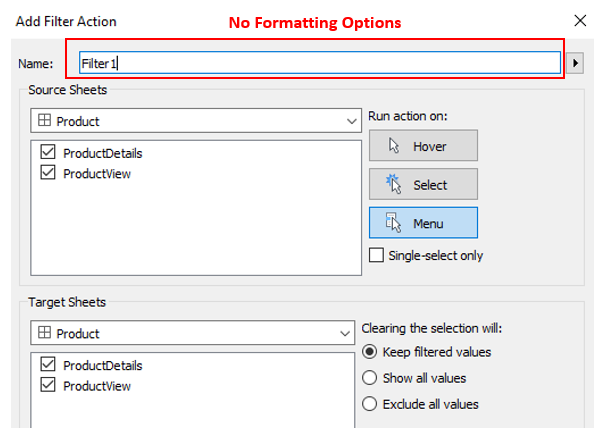
Filter actions enable dynamic data filtering across your dashboard, allowing users to narrow down the data in a target sheet based on selections made in a source sheet.
To set up a filter action, navigate to Dashboard/Worksheet > Actions > Add Action > Filter, or click on the Filter icon when selecting a sheet. By default, this filter will apply to all elements within the dashboard. To customize the filter action, you can configure its settings within the dashboard action menu, specifying how the filter should behave—such as which fields should be filtered, the type of user interaction (click or hover), and the target sheets to be impacted. These actions help create a more interactive and focused data exploration experience.
Highlight Actions in Tableau
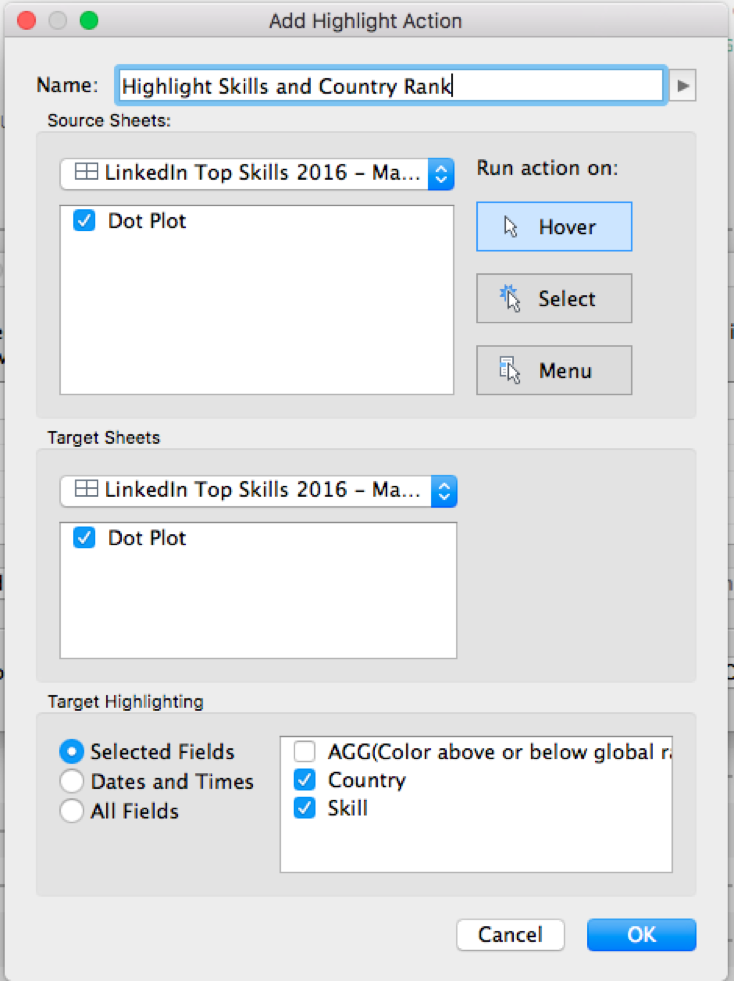
Highlight actions emphasize data points in the target sheet that correspond to the selection made in the source sheet.
To create a highlight action, go to Dashboard/Worksheet > Actions > Add Action > Highlight. From there, you can choose both your source and target sheets, as well as the specific target fields you want to highlight. This action provides a visual cue, helping users quickly identify related data points across the dashboard.
URL Actions in Tableau
URL actions open a web page or external URL when you select a data point in the source sheet. These URLs can link to websites, images, or any other online content you wish to display on your dashboard.
To use URL actions, ensure you have a field containing URL links (e.g., https://...). Then, navigate to Dashboard/Worksheet > Actions > Add Action > URL, and select the field containing the URLs as the address. Finally, add a web page object to your dashboard and assign it the same URL address as the action, allowing for seamless integration of external content within your visualizations.

Go to Sheet Actions in Tableau
Go to Sheet actions enable navigation to a different report or dashboard when you select a data point in the source sheet, similar to using a navigation button.
To set up a Go to Sheet action, go to Dashboard/Worksheet > Actions > Add Action > Go to Sheet. From there, you can specify the source sheet and the target sheet or dashboard you want the action to navigate to, facilitating smooth transitions between different views within your Tableau project.

Change Set Values Actions in Tableau
Change Set Values actions enable you to modify the values within a set based on a selection made in the source sheet. These actions are particularly useful when applying sets to color, offering an alternative to traditional highlighting.
To create a Change Set Values action, go to Dashboard/Worksheet > Actions > Add Action > Change Set Values. Then, simply choose the source sheet and the target set that you want to modify, allowing you to dynamically adjust the set values based on user interactions.

Change Parameter Values Actions in Tableau
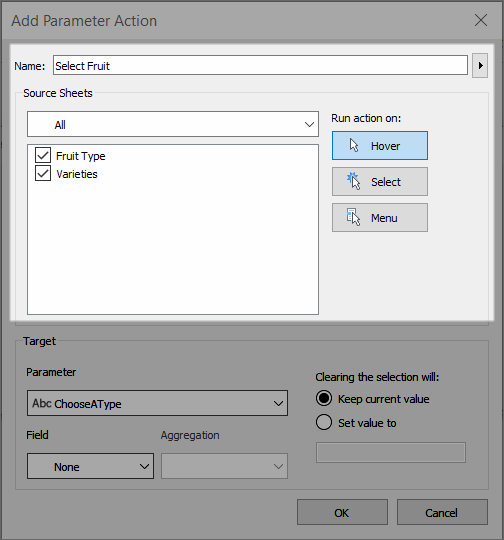
Change Parameter Values actions enable you to modify the values within a parameter based on a selection made in the source sheet. These actions can often achieve similar outcomes as set actions, offering flexibility in interactive visualizations.
To set up a Change Parameter Values action, go to Dashboard/Worksheet > Actions > Add Action > Change Parameter Values. Then, select the source sheet and target parameter you wish to adjust, allowing dynamic control of parameter values through user interactions.
Final Thoughts on Dashboard Actions in Tableau
Mastering dashboard actions in Tableau has the power to elevate your data presentations, transforming them into more interactive and insightful experiences. By applying the techniques outlined in this article—from creating filters and highlight actions to exploring advanced dashboard functionalities—you can significantly enhance user engagement and interactivity. Continuously testing and refining your dashboard actions ensures they align with your audience's needs. With practice, you'll not only become proficient at crafting dynamic dashboards but also empower your users to explore and interpret data in new and meaningful ways.


