Understanding Relative, Absolute & Mixed Referencing in Excel

When working with Excel, formulas are one of the most powerful tools at your disposal. But to use them effectively, especially when copying formulas across cells, you need to understand how cell references behave. This is where relative, absolute and mixed references come into play. One of the most commonly used reference types is relative referencing.
In this blog post, we'll focus on relative references. Let’s explore what they are, how they work, and when to use them.
Relative Referencing
Relative referencing means that when you copy a formula from one cell to another, Excel automatically adjusts the cell references in the formula relative to the position where it’s moved.
Example:
If cell A2 contains the formula as shown in picture:
= B2 + C2
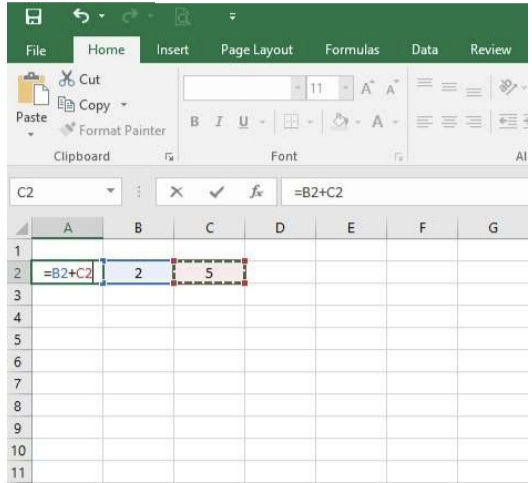
And you copy this formula to cell A3, Excel will automatically change the formula to:
= B3 + C3
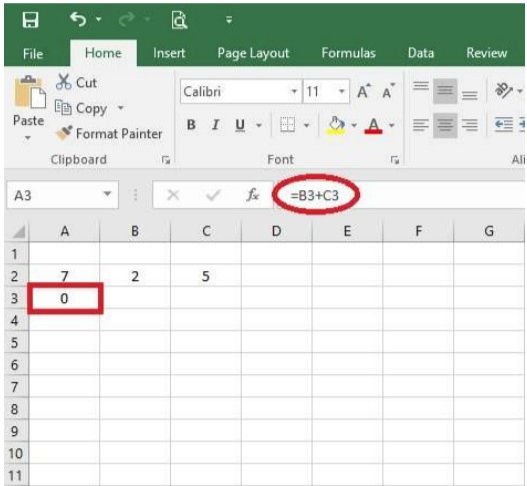
This behavior allows you to reuse the same formula across multiple rows or columns without manually editing each one.
Why use relative reference?
Relative references are extremely useful when:
You need to apply the same calculation across many rows or columns.
You want to save time by copying and pasting formulas without adjusting each one manually.
You're working with dynamic datasets where data shifts regularly.
How It Works ?
When you enter a formula like =B2+C2, Excel doesn’t just store the formula as a static link to those cells. Instead, it understands this as:
“Add the value one cell to the right and one cell two columns to the right from where I currently am.”
So if you move the formula down a row, Excel keeps the same relative positions, not the exact cell addresses.
How to Create and Use a Relative Reference
Here’s a simple walkthrough:
Enter your formula in the first cell. Example: In A2, type =B2+C2.
Press Enter to apply the formula.
Copy the formula down using the fill handle (the small square at the bottom-right of the selected cell).
Excel automatically adjusts the references for each row:
A3 will have =B3+C3
A4 will have =B4+C4
And so on.
Common Mistakes to Avoid
Accidentally Overwriting Cells: Be careful when dragging formulas—you might overwrite existing data.
Mixing Reference Types Without Understanding: If you mix relative and absolute references
(e.g., $A$1 vs A1), it can lead to unexpected results if you're unsure of how they behave.
Example:
Imagine you’re calculating the total cost in an invoice where column B contains quantity and column C contains unit price. You want column D to show the total.
In D2, enter: =B2*C2
Drag the formula down through the rest of the rows in column D.
Boom! Relative referencing just saved you from writing dozens of formulas manually.
Absolute Referencing
An absolute reference ensures that a specific cell reference does not change when you copy a formula to another cell. You use dollar signs ($) to lock both the column and the row.
= $A$1
This tells Excel to always refer to cell A1—regardless of where the formula is moved or copied.
When to Use Absolute References:
Referencing constants like tax rates, conversion rates, or thresholds.
Using formulas across tables where part of the formula needs to stay locked.
Creating dynamic ranges or mixed references in advanced functions like VLOOKUP, INDEX, MATCH, etc.
Example:
Let’s say A1 contains a tax rate (e.g., 10%), and you want to calculate tax on multiple amounts listed in column B. You can write:
= B2 * $A$1
If you copy this formula down column C, the reference to B2 will change (B3, B4, etc.), but $A$1 will remain constant.
Quick Shortcut:
Select the cell with the formula.
Click on the formula bar.
Click on the reference you want to make absolute (e.g., A1).
Press F4 → It toggles between:
A1 → $A$1 → A$1 → $A1 → A1
Note: On Mac, use Command (⌘) + T
Mixed Referencing
Mixed referencing in Excel refers to a cell reference that is partially absolute and partially relative. This means that either the row or the column is fixed, but not both. It’s a powerful tool when you want one part of a cell reference to remain constant while the other adjusts when copying or filling formulas.
There are two types:
$A1: Locks the column, row changes.
A$1: Locks the row, column changes.
Example 1 – Locking a Row:
In a price chart, you might have exchange rates in row 1. To apply these rates to different product prices in a column, use:
= A2 * B$1
When copied down, the formula will still refer to row 1 for the rate, but pick up the new product price in column A.
Example 2 – Locking a Column:
If your rates are in column A and you’re calculating across multiple rows and columns:
= $A2 * B2
This locks the exchange rate in column A as you move the formula sideways.
When to Use:
Creating dynamic tables like multiplication grids or dashboards.
Working with two-dimensional data that needs partial referencing.
How to Toggle Reference Types:
In Microsoft Excel, "toggling reference types" typically refers to changing between relative, absolute, and mixed cell references in formulas.
Steps:
Click on the cell with the formula.
Click inside the formula bar and place your cursor on the cell reference (e.g., A1).
Press F4 on your keyboard.
Each press of F4 toggles the reference type in this order:
A1 → $A$1 → A$1 → $A1 → A1
Note: This shortcut works in Windows. On Mac, use Command + T.
Example:
If your formula is:
=SUM(A1)
and you press F4, it will change to:
=SUM($A$1)
Pressing F4 again changes it to:
=SUM(A$1)
Pressing F4 again changes it to:
=SUM($A1)
Summary:
Mastering absolute, relative, and mixed referencing is a foundational Excel skill. Whether you're building simple budgets or complex financial models, knowing how to control how Excel references cells can make your spreadsheets smarter, more flexible, and more efficient.


