Staging Challenges Faced in PostgreSQL
Hello Data Squads,
In this blog, I would like to share my challenging experience in Staging the raw dataset in PostgreSQL, grounded in real-world healthcare data. The health care datasets are often high-volume, high-variability, and clinically sensitive, demanding precision at every stage of transformation.
Tools Used: PostgreSQL 17, PgAdmin 4, Python, Jupyter Notebook.
Whether you're designing your first healthcare data pipeline or refining an existing one, this blog aims to offer modular, reusable strategies that ensure your data is clean, traceable, and analysis ready.
Data Staging:
Data Staging refers to the process of importing or transferring external/ raw data files into a PostgreSQL database. It’s the very first step in any ETL workflow, where raw data often messy, large, and varied in format is brought into the system for further staging and transformation.
PostgreSQL supports a wide range of ingestion workflows, particularly when paired with tools such as pgAdmin, psql, and external utilities. Whether you're working with structured .csv files, semi-structured Excel sheets, or PostgreSQL-native backup formats like .tar and .bak, each method has its own best practices and performance considerations.
In this blog, we’ll explore the two key challenges we encountered during our staging process. One while restoring backup files and the other while bulk‑loading the CSV data and how we effectively resolved them to achieve a seamless ETL pipeline.
Challenge 1: Database Restoration using backup files
We all know how to restore a backup file in PostgreSQL. There also we faced some issues during restoration. In the restoration not all the processes are succeeded, some are failed due to backup files format, in which database engine they are created.
In PostgreSQL, .tar and .bak files both are used for backups, but they differ in format, flexibility, and how they’re restored. Let me explain in detail so we can come to know the root cause of this restoration issue.
The Usual UI Restoration Flow in pgAmin would be,
1. Launch pgAdmin and connect to your PostgreSQL server.
2. Right-click the target database (or create a new one if needed).

3. Select "Restore…" from the context menu.
4. In the Restore dialog:

Give the below details
Format: Choose Custom or Tar if you are using backup file
Filename: Browse and select the backup file.
Click "Restore" and monitor the Messages tab for progress and errors.
We followed the same steps, but we couldn’t achieve it. Then we troubleshooted the issue why it is not restored properly.
Basically, there are multiple reasons behind this unsuccessful restoration. It can be due to
Backup format issue, Version incompatibility,
Permission problems, Missing dependencies and Corrupted files.
In our case the actual problem is Version Incompatibility, because we tried multiple things when finally, we upgraded the latest version of PostgreSQL the restoration Process was successful. Then we realized the backup file was created using any latest pg_dump version. PostgreSQL newer versions are Forward Compatible with older backups.
If you want to make sure the backup was created by pg_dump or not you can do the following things:
1. Simple way is to open your backup file in any text editor and check the first line. It should have “PGDMP”. If so, it was created by pg_dump and restoration would be successful anytime.
2. Otherwise, you can list the files using pg_restore in Command Promt terminal. Syntax to list the files in the terminal is:
pg_restore --list "path_to_your_backup_file"
Challenge 2: When Bulk Loading the .csv files
The next challenge we faced was working with a raw CSV file containing over 270 patient cohort records and more than 100 variables, provided for analyzing the impact of maternal fat on delivery outcomes.
So, we were thinking of bulk loading the .csv file into PostgreSQL, which is a common method to stage the dataset into PostgreSQL. In order to do that we need to have some prerequisites in our side.
Following are the Prerequisites:
· Target Database: Before the loading process we need to ensure that we have an existing database which acts as a destination database to load the raw data. It's best practice to use a dedicated staging schema to isolate raw data from cleaned and transformed tables. This separation provides a safety net in case of ingestion errors or rollback needs.

Above are the syntax to create database and staging schema in PostgreSQL.
· Target Table: Like the Database, the staging table into which data will be loaded must be pre-created with a structure that exactly mirrors the raw dataset structure.
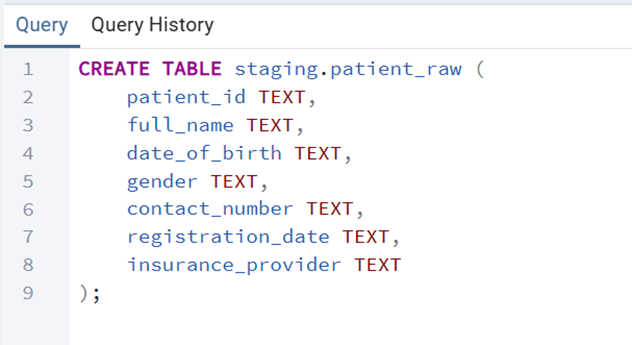
Here all the columns in the staging table should use the TEXT data type to allow flexible ingestion of mixed or inconsistent values. This avoids type mismatch errors during the initial load which ensures smooth data transition.
Once the Prerequisites is made, we Wrote the COPY Query to stage the dataset as planned.
There we encountered an interesting challenge. For some users, the standard COPY Query worked flawlessly:
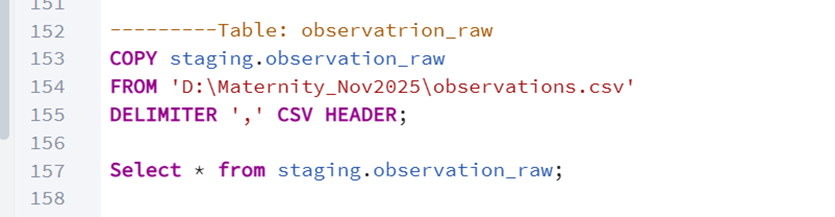
However, for others, the same command failed with an error stating that:
“The PostgreSQL server was denied access to the local file system.”
Then we troubleshooted the problem and got the reason. This happened because the COPY command runs on the PostgreSQL server, and it requires the server to have direct access to the file path. If the file resides on the client machine (e.g., a local laptop), and the server is remote or sandboxed, the server cannot reach that path resulting in a permission or access error. So, we tried the alternate solution.
Solution 1: Using \copy in the psql Terminal
To resolve this, we switched to the \copy command, which runs on the client side PSQL Terminal and streams the file into the database:
\ COPY staging.observation_raw FROM 'D:\Maternity_Nov2025\observations.csv' DELIMITER ',' CSV HEADER;
This approach worked perfectly because:
· The file was accessible to the local machine running the terminal
· \copy bypassed the server’s file access restrictions by handling the transfer from the client
Takeaway:
· Use COPY when the file is on the PostgreSQL server and accessible to it.
· Use \copy when the file is on your local machine and you're connected via psql.
· For this you need to be ready with your PostgreSQL Server username and password provided during installation.
This flexibility allowed our team to continue bulk loading across different environments without modifying the core ingestion logic.
So, ensure the following points while you set up a folder in your local:
Create a dedicated folder for ingestion files (e.g., D:/Maternity_Nov2025/) to keep raw data organized and separate from system files.
Avoid using system folders such as C:/Program Files/, C:/PostgreSQL/data/, or root directories such as C:/ or D:/.
Ensure the PostgreSQL server process (usually running as Postgres or NETWORK SERVICE on Windows) has read access to the folder.
[On Windows-->Right-click the folder-->Properties-->Security tab-->Add Postgres or NETWORK SERVICE if not listed-->Grant Read and Read & execute permissions]
This troubleshooting triggered our curiosity to research, is there any solid one-time solution for this “Server File Read Permission Issue”. Because after tried out the COPY Query only we came to know that the Permission was Denied. Instead of this trial-and-error kind of approach there should be one way whether the file is in the PostgreSQL Server or not we still can do the Staging flawlessly. So, we end up with a solid way using Python particularly psycopg2 – a library used to connect Python to PostgreSQL.
Solution 2: Using psycopg2 library in Python Script
This Method involves 5 simple steps:
Import the psycopg2 library.
Python connects to your PostgreSQL database using Connection Details such as Hostname, Database Name, Username and Password.
Python reads the file from your local machine.
Python streams the CSV into PostgreSQL using STDIN
Finally, the data will be staged in the required table in PostgreSQL Database
The sample code snippet for this Python script is given below,

This seems to be the optimal way to stage your data flawlessly in few steps.
Conclusion:
Effective data staging is the backbone of any reliable ETL pipeline, especially in healthcare where data volume, variability, and sensitivity are high. Our experience showed that challenges like backup‑format incompatibility during restoration or file‑access restrictions during bulk CSV loading are not roadblocks. They’re signals to choose the right ingestion method for the environment. Hope You get some interesting insight from my experience. Happy Reading!!!!


