Screenshots In Selenium WebDriver
Updated: Mar 14, 2025
Selenium WebDriver is an open-source web framework that automates web applications testing. To capture a screenshot in selenium, we need to use TakesScreenshot method which notifies the web driver to take screenshot and save it in selenium.
Benefits of Taking Screenshots in Selenium
When an automation test fails, the first priority is to identify the exact location and reason for the failure. However, rerunning the test scripts to spot the failure can be both inefficient and time-consuming, especially in large test suites.
By capturing screenshots during the test execution, testers can obtain a snapshot of the application’s state at the point of failure. This provides valuable context and eliminates the need for repeatedly running tests to detect what went wrong.
Having a visual reference helps tester quickly and accurately identify the root cause of the failure, whether its UI elements, Incorrect actions or unexpected behaviors, leading to faster resolution of issues.
Cases where Selenium Screenshots are crucial
When application experiences unexpected issues and failure.
When test assertion does not pass as expected.
When there are difficulties in identifying and interacting with the Web elements.
When timeout happens while searching for a web element on the page.
Steps to capture a Screenshot
Initialize the WebDriver instance and navigate to the web page you want to capture.
Selenium provides the “getScreenshotAs()” method for capturing screenshots. But to use it, we must first type cast the WebDriver object to the “TakesScreenshot” interface, since this interface contains the method for taking screenshots.
The screenshot will be saved as a File object. We can then use Java’s FileUtils.copyfile() method from the Apache commons IO library to save the screenshot.
Example: In this example, we will take the screenshot and save it as C:\Users\vijay\eclipse-workspace\New_Eclipse\Screenshot_Blog\Screenshots.
Below is the Screenshot of the Code in selenium.
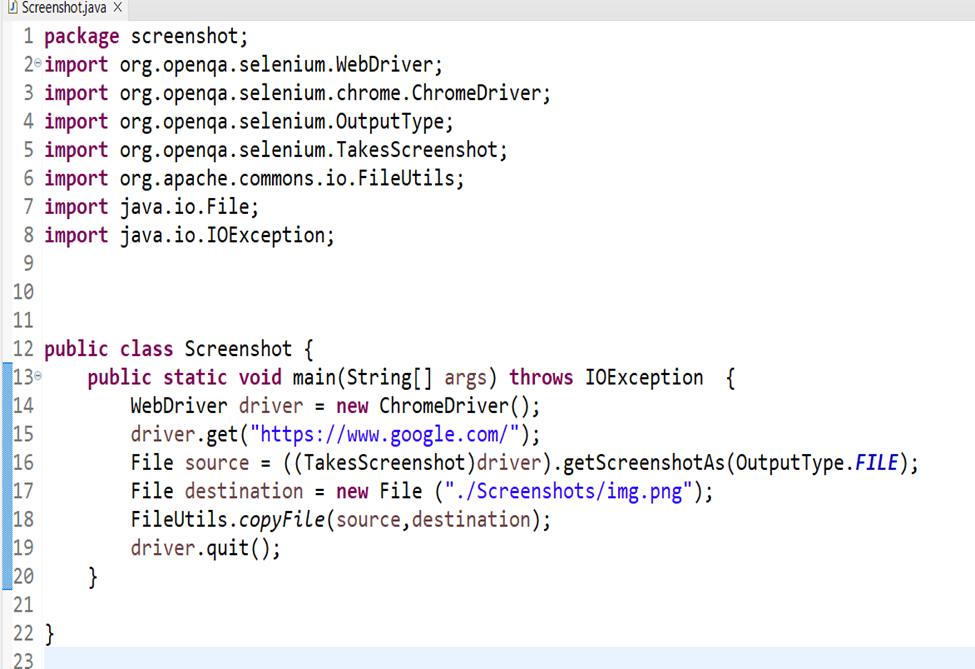
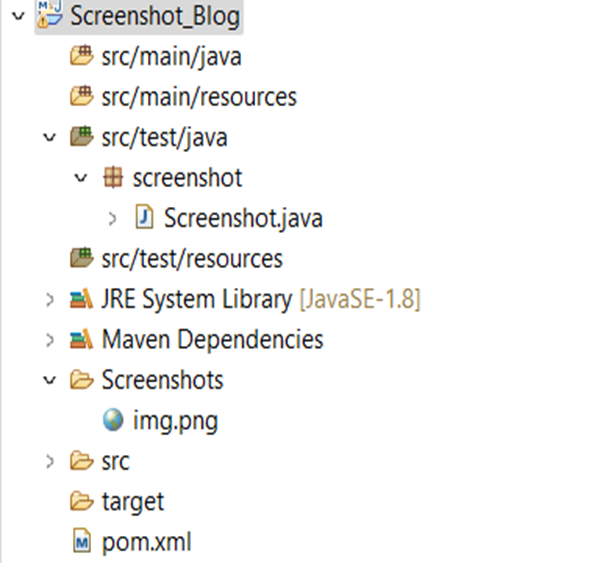
Screenshot is saved under the folder Screenshots as “img.png”.
Steps to capture a screenshot of a Web Element
Use a locator to find the element.
Use getScreenshotAs() method to capture the screenshot of just the element.
Save the Screenshot as a file.
Below is the Screenshot of code to capture a screenshot of an element:

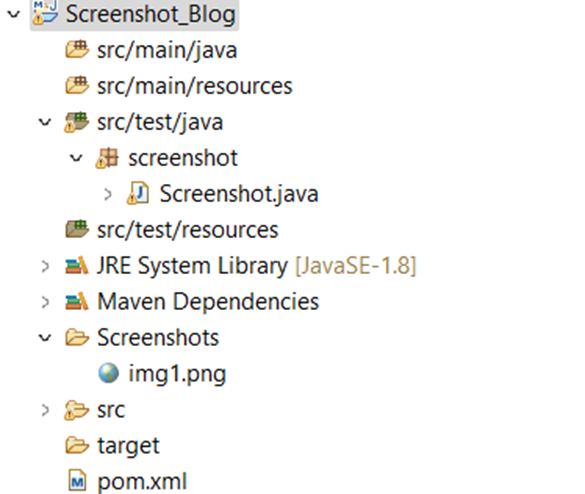
Screenshot is saved under the folder Screenshots as “img1.png”.
Steps to capture screenshot of failed testcases using ITESTResult
Set up the WebDriver to open the application, depending on the web browser you want to test. We are using chrome browser here.
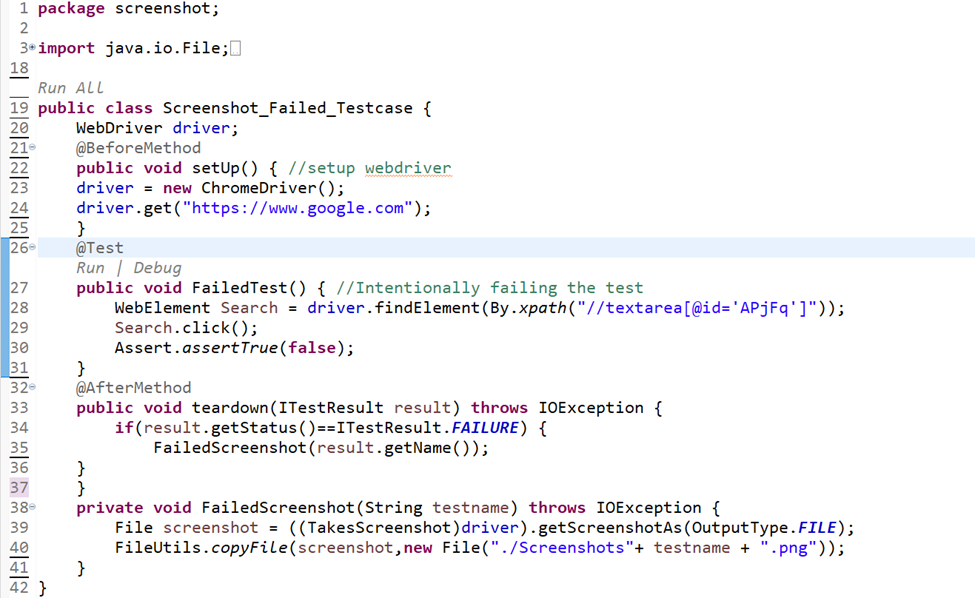
Write a test case where we look for something that does not exist. This will fail the test on purpose. When the test fails, we will take the screenshot to check where the problem occurred.
To take screenshots of failed testcases, we have used ITestResult Interface. It provides the test case execution status and test case name.
We can achieve this by keeping screenshot code in @AfterMethod annotation of TestNG, which runs after each testcase and checks its status. If testcase is failed it execute code which is under AfterMethod annotation and take screenshot
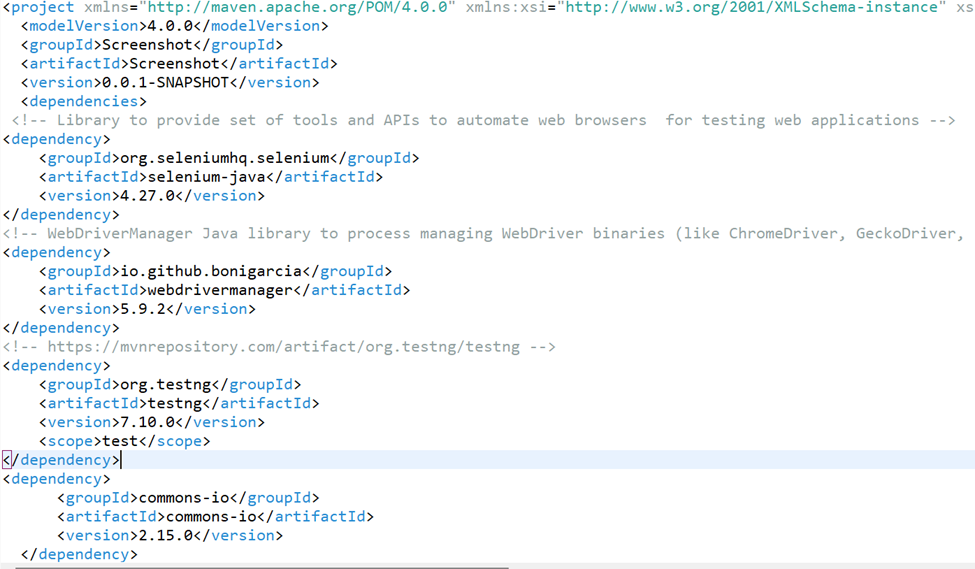
Dependencies Added.
Below is the Screenshot of the Code using ITestResult Interface
Screenshot of failed testcase is saved in specific directory with the name of the Test Method.

Conclusion
Screenshots in selenium enhances test automation by capturing the page, specific elements and Failures. They improve debugging, reporting, and troubleshooting by providing visual context when testcase fails, making automation more efficient and transparent.
Happy Testing!


