Refresh Smarter, Not Harder: Incremental Data Load in Power BI

If you’ve ever watched a Power BI refresh run for 30 minutes—only to fail right at the end—you already understand the pain of full data refreshes.
As datasets grow, refresh times increase, memory usage spikes, and scheduled refreshes become unreliable. This problem becomes even more serious when you’re repeatedly reloading years of historical data that never changes.
This is exactly why Incremental Data Load is one of the most important performance features in Power BI semantic models—especially in enterprise-scale solutions.
In this article, you’ll learn:
Why full refreshes don’t scale
What incremental data load actually is
How it works behind the scenes
Step-by-step instructions to set it up
Best practices and common mistakes to avoid
Why Full Refreshes Break at Scale
Power BI’s default behavior is simple: refresh everything, every time.
That means each refresh:
Reloads old historical records
Reprocesses closed accounting periods
Recalculates unchanged data
Consumes unnecessary memory and compute resources
At small scale, this works fine. But as your semantic model grows—supporting multiple reports, teams, and business units—a slow refresh doesn’t just delay data.
It:
Delays decision-making
Breaks scheduled refreshes
Creates dependency on manual fixes
Reduces trust in analytics
Full refreshes don’t fail because Power BI is weak.They fail because they were never designed for large, ever-growing datasets.
This is the exact problem incremental data load was built to solve.
What Is Incremental Data Load?
Incremental data load means Power BI refreshes only what has changed.
Instead of reloading the entire dataset:
New data is added
Recent data is reprocessed (to handle updates)
Older historical data remains untouched
The result is:
Faster refresh times
Lower memory usage
More reliable refresh schedules
Semantic models that scale with the business
Incremental refresh doesn’t change what data you have—it changes how often data is reprocessed.
How Incremental Load Works Behind the Scenes
Incremental refresh is powered by date-based partitions.
You define two key windows:
Historical window → how much data to keep (for example, last 5 years)
Refresh window → how much recent data to refresh (for example, last 7 days)
Power BI then:
Splits your table into date-based partitions
Refreshes only the most recent partitions
Preserves older partitions as-is
The important part?You don’t manage partitions manually—Power BI handles everything for you once it’s configured.
Step-by-Step: Setting Up Incremental Data Load
Let’s walk through the setup process clearly and simply.
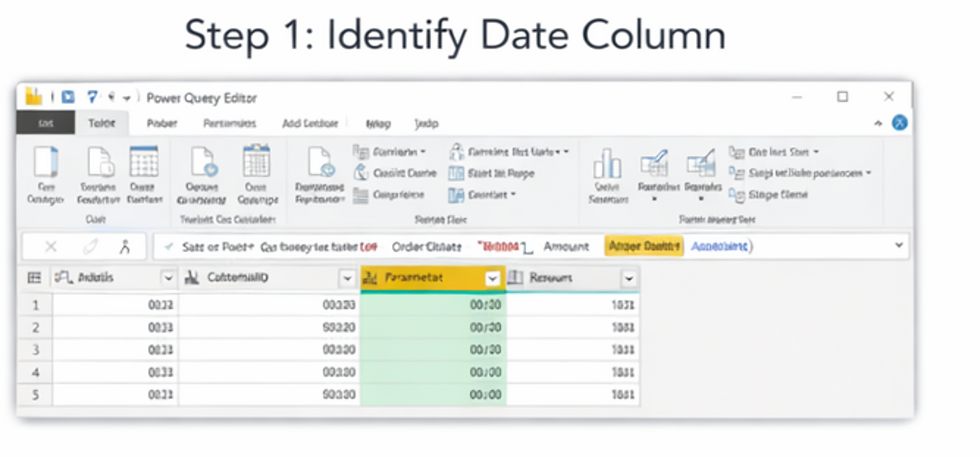
Step 1: Identify a Date Column
Your table must contain a reliable date or datetime column, such as:
OrderDate
TransactionDate
CreatedAt
EventTimestamp
This column drives partitioning.Without it, incremental refresh is not possible.
Step 2: Create Required Parameters
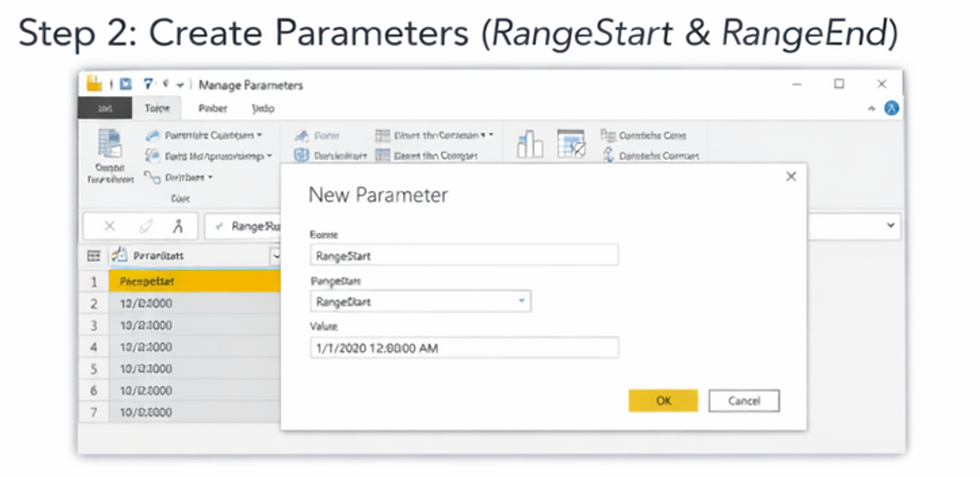
In Power Query Editor, create two parameters:
RangeStart → Date/Time
RangeEnd → Date/Time
These parameters act as placeholders that Power BI uses internally during refresh.
You don’t manually change them—Power BI does.
Step 3: Filter the Date Column
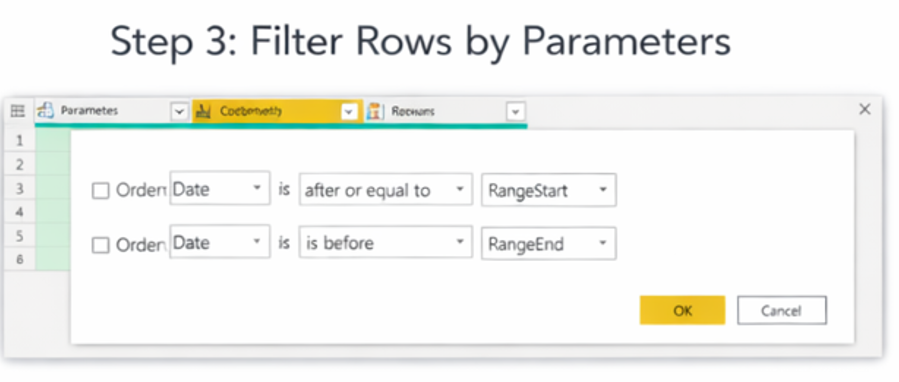
Apply a filter on your date column:
Date >= RangeStart
Date < RangeEnd
This step is mandatory.
If this filter is missing or applied incorrectly, incremental refresh will not activate—no matter how much configuration you do later.
Step 4: Configure Incremental Refresh
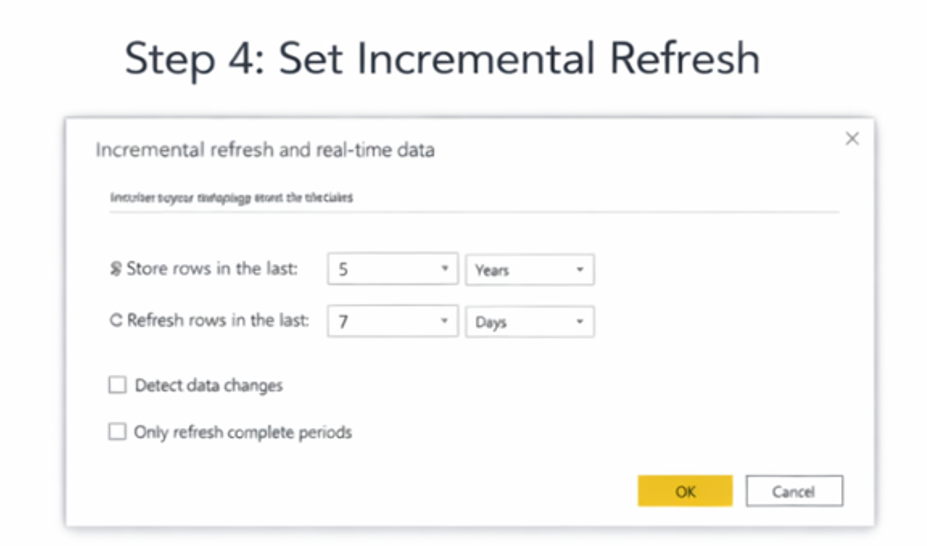
Right-click the table → Incremental refresh → configure:
How much data to store (example: 5 years)
How much data to refresh (example: last 7 days)
Optional: detect data changes (advanced scenarios)
This configuration tells Power BI exactly how to partition and refresh your data.
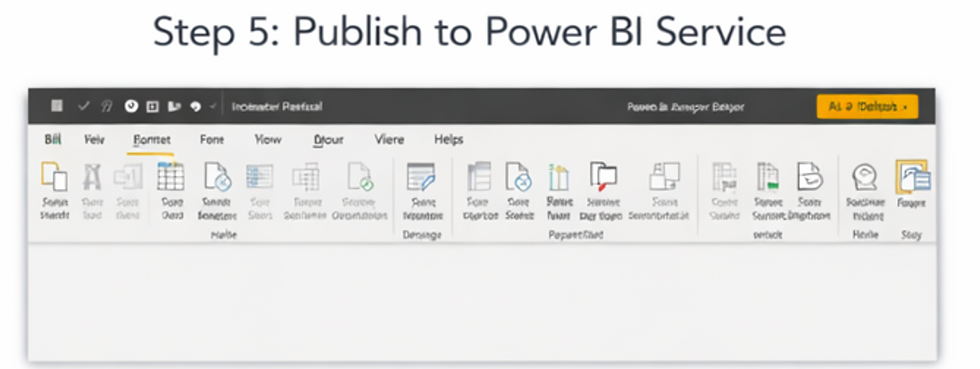
Step 5: Publish to Power BI Service
Incremental refresh only works in Power BI Service, not in Desktop alone.
After publishing:
Power BI creates partitions automatically
Refreshes target only recent partitions
Historical data remains untouched
The first refresh may still take time—but that’s expected.
What Happens During the First Refresh?
The first refresh:
Loads all historical data
Creates partitions
Establishes a baseline
Every refresh after that:
Touches only recent partitions
Skips unchanged historical data
Runs significantly faster
This is where the real performance gains appear.
A Real-World Example
Consider a sales fact table with:
60 million historical rows
200,000 new rows added daily
Without incremental load:
Every refresh processes all 60 million rows
With incremental load:
Only the last 7 days refresh
Historical data stays untouched
Result:
Refresh time drops from hours to minutes
Refresh failures nearly disappear
Semantic model becomes reliable at scale
Best Practices for Incremental Load
To get the most value:
Use indexed date columns at the source
Allow buffer days for late-arriving data
Apply minimal transformations before date filtering
Monitor refresh history in Power BI Service
Test behavior after publishing—not just in Desktop
Incremental refresh works best with clean data models and intentional design.
When Incremental Load Is Not Ideal
Incremental refresh is powerful—but not universal.
Avoid it if:
Historical data changes frequently
Tables are very small
There is no reliable date column
You require full recalculation every refresh
In these cases, a full refresh may still be the better choice.
Incremental Load vs Full Refresh
Feature | Full Refresh | Incremental Load |
Data processed | Entire dataset | Only new/recent data |
Refresh speed | Slows over time | Scales efficiently |
Memory usage | High | Optimized |
Refresh reliability | Lower | Higher |
Enterprise readiness | ❌ | ✅ |
Key Takeaways
Incremental refresh optimizes data refresh, not data modeling
Configuration happens in Power Query
It works only after publishing to Power BI Service
It’s essential for large semantic models
It’s one of the highest-impact optimizations in Power BI
Final Thoughts
Incremental data load is not just a performance feature—it’s a scalability strategy.
Instead of refreshing data that never changes, you let Power BI focus on what actually matters: new and recent data.
Think of it this way:
Full refresh rewrites the entire book
Incremental load updates only the latest chapter
Once implemented correctly, your Power BI semantic models become faster, more reliable, and ready to grow with the business. with the business.


