Python Essentials: From Notebooks to Analytics Power
When I got the chance to analyze a dataset using Python, I was excited but also a bit overwhelmed. I knew Python was considered an easy-to-learn programming language, yet for a beginner, handling so many lines of code could be confusing. So, before diving into data analysis, I decided to start with the basics—learning simple Python syntax and essential commands that would make analyzing large datasets much smoother.
Python is a high-level programming language widely used in web development, data science, and automation. It's beginner-friendly, powered by libraries like NumPy and Pandas. It runs on all major operating systems.
How Python Code Runs
Ever wondered how Python turns code into action? It translates your instructions into bytecode, then runs them line-by-line via the Python Virtual Machine (PVM), throwing errors immediately if found.
Like handing a recipe to a Master Chef: code → kitchen lingo (bytecode) → step-by-step cooking in a smart oven. Quick results, no waiting!
Jupyter Notebook: Your Magic Coding Playground!
Think of Jupyter like your digital lab notebook—you write code, run it, see results, and add notes, all in one spot. Fernando Pérez created it back in 2011 (starting from Python's IPython) to make coding interactive for scientists, then expanded it into Project Jupyter in 2014 to also handle R and Julia.
If you work in "cells"—just type some Python code, hit Shift+Enter, and boom, instant results, charts, everything right below. No waiting around like with other languages. Perfect for beginners messing around with data!
Let's Launch the First Notebook:
1. Start Jupyter
Anaconda: Open Anaconda Navigator and click Jupyter Notebook.
Terminal: Open terminal or command prompt and type jupyter notebook.Dashboard opens in browser!

2. Create a New Notebook
Click "New" (top-right) → "Python 3". Instant playground!

3. Start Coding
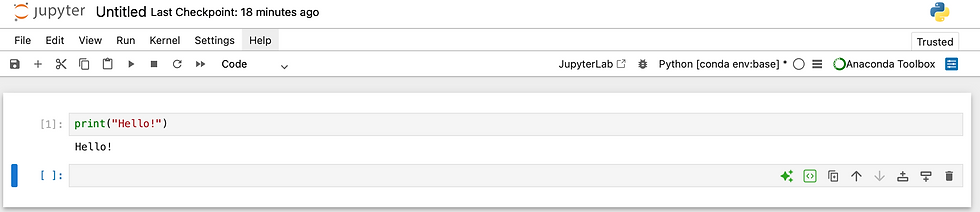
Type in the cell (e.g., `print("Hello!")`), press Shift+Enter. Results magic!
4. Document Your Work with Markdown CellsRaw data is good, but notebooks become storytelling magic when you add Markdown cells to explain why you're using certain code and what you're doing. Suddenly your analysis tells a complete story!
Quick Sample Markdown

Output:

Python Strings: Quotes, Lines & Comments
Python is a case-sensitive language, meaning "Hello" and "hello" are treated differently. To display text like "Hello World", enclose it in single or double quotes:
print("Hello World!")
print('Hello world')
For multi-line strings, use triple quotes — perfect for longer messages:
message = """Hello,This is a multi-line stringusing triple quotes!"""
print(message)
When you use the # symbol in a code cell, Python treats everything after it as a comment and ignores it completely. This helps any reader understand exactly what your code does.

Quick Tips:
Always match your quotes
Use # comments to make code readable!
Understanding Quotes and Brackets in Python
In Python, different quotes and brackets each have a specific role, and knowing what they do makes your code much easier to read and write.
Quotes ' ' or " ": Used for text (strings), for example "Hello World" or 'Patient A'.
Parentheses (): Used when you call functions or group expressions, such as print("Hello"), input("Enter age: "), or (a + b) * c.
Square brackets []: Used for lists and positions, like ages = [20, 30, 40] or ages[0], and for selecting columns in pandas, like df["lactate"].
Curly braces {}: Used for dictionaries and inside f-strings, for example {"name": “Ana”, ”age”:30} or f"Patient {patient_num} checked", where the part inside { } is replaced by a value.
Easy memory trick: text → quotes, doing/calling → (), collections/positions → [], key–value or f-string inserts → {}.
Variables and Data Types:
Variables in Python are like sticky notes labeling containers on a shelf—they give a quick name to any piece of data you want to store or use. Just write age = 25 or name = "Alex", and Python automatically figures out what it holds—no extra setup needed.

Data types classify that data, deciding what you can do with it—like adding numbers or joining words:

Output:
In 5 years: 30
Full name: Alex Smith
Not ready? False
Checking Variable Types:
Use the built-in type() function with any variable name inside parentheses to reveal its data type instantly. The simple formula type(variable_name) works every time—try type(age) to see <class 'int'> or type(name) for <class 'str'>.
Basic Input and Output Functions:
input() Function: Displays a message (prompt), pauses your program, and captures what the user types, always returning it as text (string). Convert to numbers using int() or float() for calculations.
print() Function: Displays values or messages on the screen with automatic spacing between items and a new line at the end. Use f-strings like f"Age: {age}" for clean formatting.
Patient Age Example:


Conditional Statement:
A conditional statement is an if-then statement that says what happens when a certain condition is true. In logic and math, it connects two propositions like “If P, then Q,” where P is the hypothesis and Q is the conclusion. Conditional statements are used anywhere a system needs to make a decision based on a condition being true or false. They appear in everyday logic, mathematics, and almost all programming languages.
In data analytics, a conditional statement is a simple rule that tells your code, “If this condition about the data is true, then do this action; otherwise, do something else.” It is used to create flags (like high-risk vs low-risk patients), to group values into categories (for example, age bands), or to decide how to clean or transform each row based on its values.
Here is an easy example which uses a conditional statement to check each lactate value and assign a risk label that is very natural in analytics work.

Loops: Making Code Repeat
Loops are like a repeat button for your code—they let you run the same block of instructions multiple times without copying and pasting. In Python, loops are especially helpful in data analytics because you often need to perform the same check or calculation for many rows, patients, or records.
For Loop Example

While Loop Example

With a for loop, you go through each item in a list or each value in a column and apply the same logic, such as checking every row's values. A while loop keeps running as long as a condition is true. By using loops, your code becomes shorter, easier to read, and powerful enough to handle everything from 5 records to 50,000 with just a few lines.
Ready for Real Data Analysis
You've now mastered Python's core building blocks—from interactive Jupyter notebooks and smart strings to variables, conditionals, and powerful loops. These skills let you write clean, efficient code that transforms messy data into meaningful insights, whether processing a few rows or thousands. With this foundation, data analysis becomes approachable and exciting—your gateway to libraries like Pandas and real-world projects is now wide open.


