Overview of Git and Git Hub for software development and testing
What is GIT and GIT HUB?
GIT is a version control tool used to build software code, it also tracks and manages code changes during the Project among different files. It also shows history of the changes made to any developed software code.
Git repositories can be local (that means on your computer ) or Remote (remote server like Git Hub). Git is an opensource tool used for continuous code integration among the team and organization for smooth collaboration so that we can easily verify code changes and maintain workflow. Where as Git Hub is where you store your code online. In order to use Git Hub we need to first create an account with username and password, here is the URL for sign in https://github.com
Steps to create the Git account
1. Click the above given URL
2. Click Sign up button and fill all the required field and click on continue to create an account

Keys Differences between Git and Git Hub
GIT | GIT HUB |
- Git is a software installed locally | - GitHub is a service hosted in cloud |
-Git is a command line tool | -GitHub is a graphical interface |
-Git is maintained by Linux | -GitHub is managed by Microsoft |
-Git is focused on Distributed source code | -GitHub is focused on centralized source code |
-Git manages different version of edits made to files in a git repository | -GitHub is a space to upload copy of the Git repository |
Steps to Create New repository
1. Click on new repository
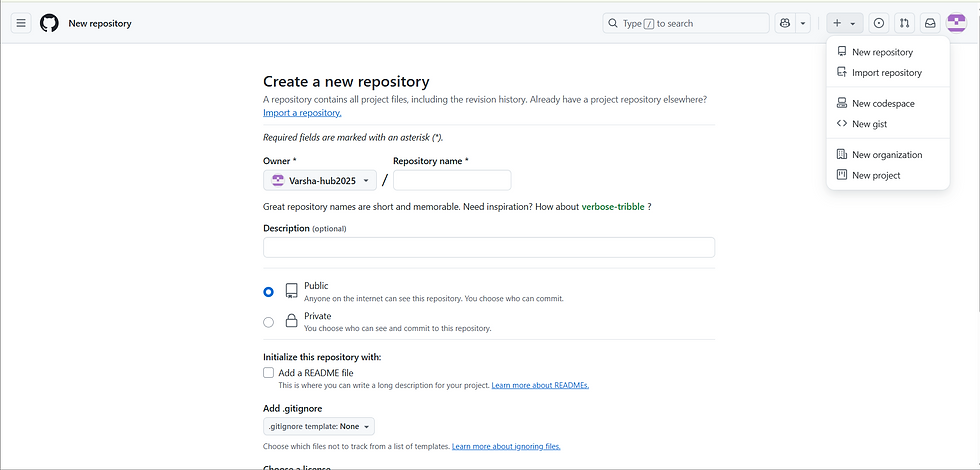
2. Give a repository name

3. Click on create repository and you can see a new repository is created.

Let’s understand GIT Work Flow:

Explanation:
. Local Repository: Place where all your files are stored in a folder on your system and all your commits are stored here .
. Remote or Git Hub Repository: Place where all your code is stored online(Remote Server)
. Cloning: We can clone remote repository in our local computer it’s a copy of existing repository into new folder. Cloning is done by clicking the URL of remote repository.

. Git Staging: Git staging allows you to move your changed code files from Un-staged changes to staged changes before you commit in your local. Files that are deleted, added or changed can be staged in your local repository.


. Commit: All your changes are saved in your local when you commit
. Push : This will push your code changes from local repository to remote server
. Pull : This will pull existing recent code from Remote repository
What is Git Terminologies?
Git terminologies are also referred as command line that can be used to perform Git Hub actions on your local computer. Below are some commonly used Git terms.
Git Main Branch: Git branches are important for parallel development and collaboration among team members to work on new features, fixes and experiment with new ideas for code development without effecting the main code. Each branch represents distinct set of changes for developers and testers to change, create, merge, delete and switch branches as needed.
We Can have only one main branch (Repository) for a team, but we can create multiple feature branch and work independently

Feature Branch: Feature branches are created from main branch so that we isolate changes from the main branch, allowing independent development and testing for specific features with out any disturbance to main code base. We can use feature branches to create a merge request.
Advantages of Feature Branch:
. Better version control
. Development is quick and easy
. Reduced Merge Conflicts
. Collaboration is easy
. Improved and enhanced code quality
Git Checkout: Git checkout command is used to point to a new branch. It is used to switch branches in a repository.

Git Stash: Git stash is used to store uncommitted work temporarily. Some times you may need do to multiple code changes to your files but you don’t want to commit your changes, Git stash allows you to save your work and you can use it later.
When you use the command Git Stash
1. It will take all the changes from your workspace and staging area and save them as stash.
2. Staging area and working directory is reset to last commit that effectively remove changes from view.
3. We can later apply this stashed changes to your workspace by applying “Git Stash Pop”.
4. We can also use command Git Stash Drop to clear stashed files.

Git Merge Request: The code changes made among team members on a separate branch of a project and want to be appraised and reviewed to the main master branch, then they should put in a pull/Merge request. The repo maintainers will review the commits made and then if it is adequate they accept the Merge changes. A pull takes place when the changes are added to Main branch.
Git Pull: Git pull command is used to get the latest code to your local repository from Remote Repository whenever they new changes in the code

Git Push: Git push command is used after you committed your recent changes in your local repository. You can now push your commit to Remote Repository known as Git Hub. Git push will create a Remote copy of your local branch. Before pushing your commits always use Git Commit to avoid any conflicts, in case if there is any conflict resolve them in your local repository and try to push again.

Git status: Git status is used to analyze and understand the current state of your working directory. Git status command will not alter commits or changes in your local repository, but gives you the output information.

Git Fetch: Git Fetch is used to download and copy files from remote branches to your working directory. We can fetch multiple files at a time and rename those files as needed.

Git Ignore Files: This are temporary or in build artifacts that can be ignore and prevented by not including in commits and cluttering the repository.
Rebase: Rebase will reapply your chages on top of a different branch, making the history easier to understand. Git rebase is use to edit commit messages and also combine multiple commits into one. It helps to avoid merge conflicts.
What is Merge Conflicts?
Merge conflicts occur when git encounter changes in the files that clashes with each other during the merging process. Merge conflicts arise when both branches are modified with the same lines of code differently, therefore git cannot automatically decide which changes to keep.
Merge Conflicts are resolve using tools, such as highlighting the conflicting sections and provides markers to indicate different versions of code in the file.
How to avoid merge conflicts?
. To reduce merge conflicts work in branches, create a new branch and work their independently without interfering with others code
. Try to pull changes frequently from remote repository to your local
. Make same changes in your files and commit, Small commits are easier to review and merge
. Communicate with other team members, try to keep your team informed about any code changes
. Keep updating your local branch with latest code from main branch.
. Consider using Rebasing this will create clean and more linear history so that will be easy to merge.
. Standardize Formatting can reduce conflicts caused by formatting differences.
CONCLUSION:
Git is an opensource version control tool most widely used for continuous code integration among different team members in an organization to main a clean and clear workflow trough out the software development. It helps to maintain scalability, Security, Branching and Merging multiple files, Data Assurance, speed. It enhance the quality of code and also help team members to collaborate and work effectively.
Thank you For Reading!
Happy Learning


