Optimize Power BI performance by mastering essential methods for limiting rows during data loading.
Optimizing Power BI performance is crucial, especially when dealing with large datasets. One common issue encountered is the "system out of memory exception" when loading extensive data. Even if a large dataset loads without an error, performance can decrease significantly due to the heavy load. To avoid these issues and improve Power BI's performance, you can use parameters to limit data during the loading process.
Here's how to implement this:
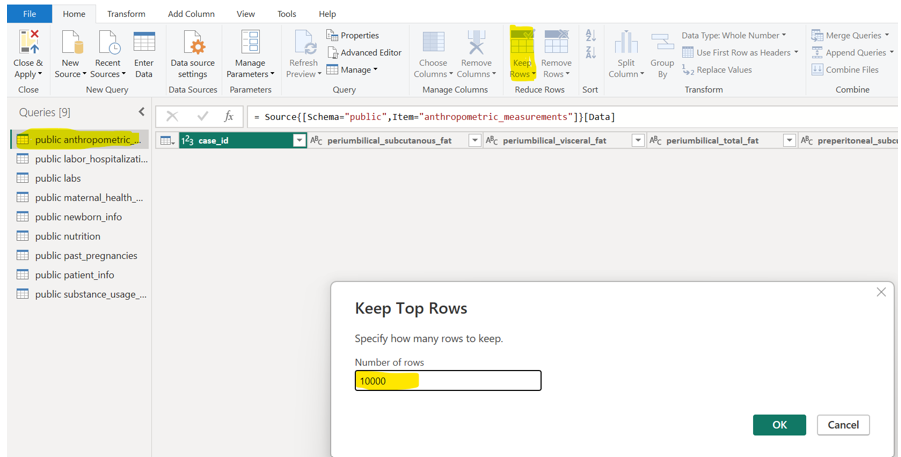
1. Limit Rows in Power Query Editor Start by opening the Power Query Editor. Click on the large table you want to optimize. Then, select "Keep Rows" and choose "Keep Top Rows". In the "Keep Top Rows" dialog box, specify the number of rows you wish to keep (e.g., 10000) and click "OK".
2. Create a Parameter Go to "Manage Parameters" and click on "Create parameters". Name the new parameter "AllOrSmall" and change its data type to "Text". Set the "Current Value" to "A" and click "OK".

3. Modify the Advanced Editor Code Right-click on your table and select "Advanced Editor". Add the following lines of code to modify the output based on the parameter:
let
Source = PostgreSQL.Database("localhost:5432", "Maternal_Health"),
public_anthropometric_measurements = Source{[Schema="public",Item="anthropometric_measurements"]}[Data],
#"Kept First Rows" = Table.FirstN(public_anthropometric_measurements,10000),
RowsToReturn = if AllOrSmall = "A" then public_anthropometric_measurements else #"Kept First Rows"
in
RowsToReturn
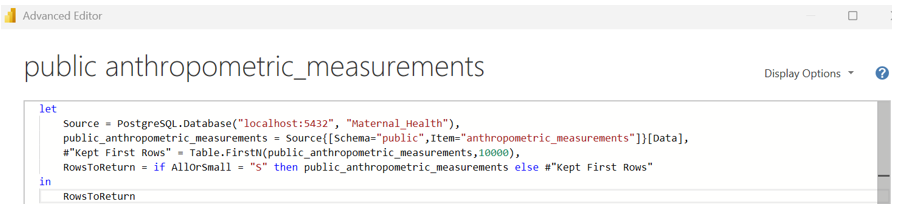
This code snippet defines a variable RowsToReturn that will either return all rows (public_anthropometric_measurements) if the AllOrSmall parameter is "A", or only the first 10000 rows (#"Kept First Rows") if the parameter is anything else. After adding the code, close and apply the changes.
4. Publish and Configure in Power BI Service Once your report is created with the selected small set of data, publish it to the Power BI Service.
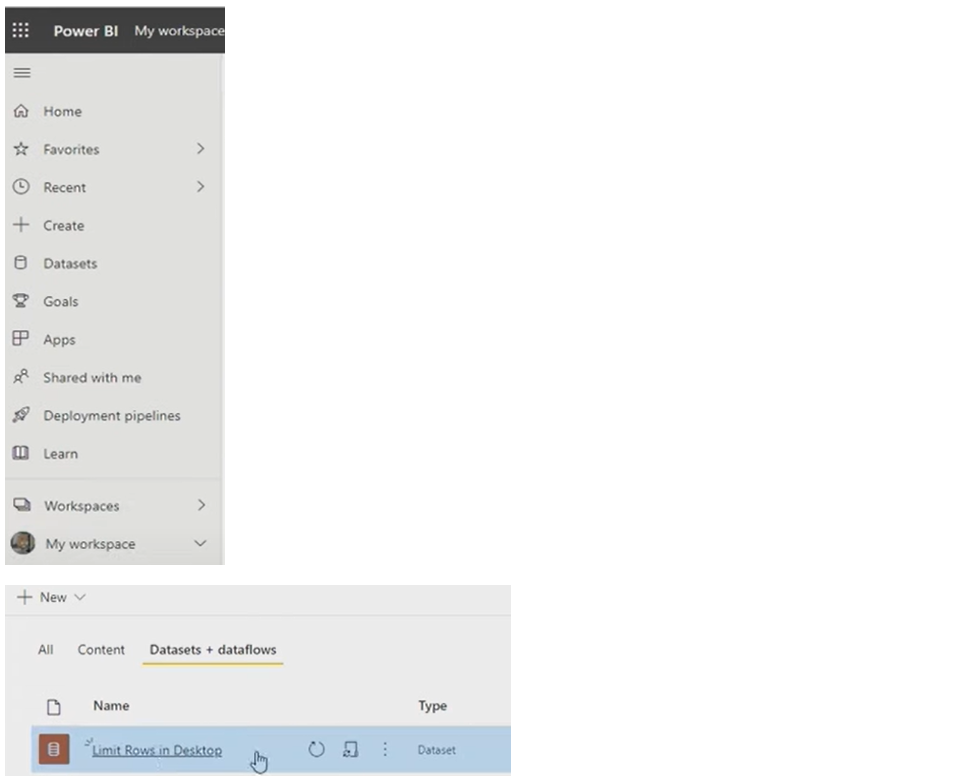
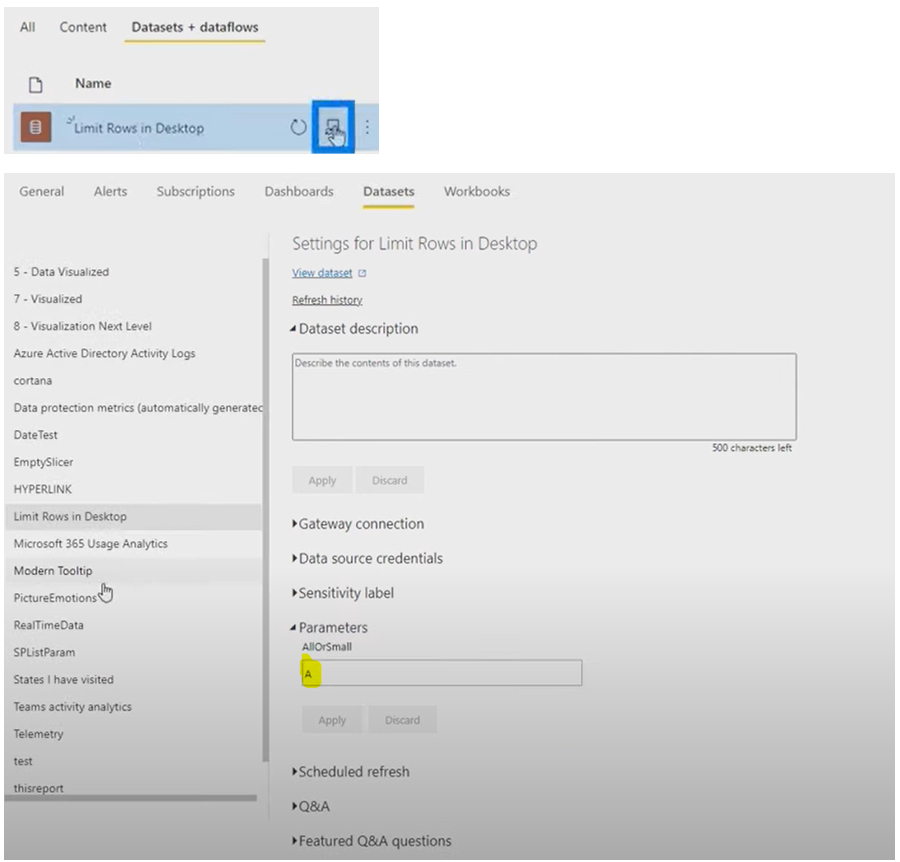
Navigate to "My workspace" and then "Datasets + dataflows". Find your dataset and go to "Schedule refresh". Under the "Parameters" section, set the "AllOrSmall" parameter to "A" and then refresh the dataset.
5. Verify the Report Finally, find your report and check that it now returns all the rows. This method allows you to work with a smaller dataset in Power BI Desktop for faster development and then publish the report to the service to view all the data.
In conclusion, mastering methods for limiting rows during data loading is an essential strategy for optimizing Power BI performance. By leveraging parameters within Power Query, you can effectively manage the data volume loaded into Power BI Desktop, thereby avoiding "system out of memory" errors and mitigating performance degradation caused by heavy datasets. This approach allows developers to work efficiently with a smaller, more manageable subset of data during the report creation phase, leading to faster development cycles and a more responsive desktop experience. Crucially, when the report is published to the Power BI Service, the parameter can be adjusted to load the complete dataset, ensuring that end-users always have access to comprehensive data for their analysis. This dual-mode functionality—small data for development, full data for consumption—is a powerful technique for building robust and high-performing Power BI solutions, ultimately enhancing the overall business intelligence workflow.


