Importing Data in Power BI : Import Mode & Direct Query Mode

Power BI has become one of the most popular tools for transforming raw data into meaningful insights.
But before you can start building reports and dashboards, the first step is importing your data.
In this blog post, we’ll walk through the basics of importing data in Power BI for understanding.
Why Importing Data Matters?
Importing data is the foundation of any Power BI project. Whether you’re analyzing sales, finance,
marketing, or operational data, you need to bring it into Power BI first. Power BI offers a wide range of
data connectors and options to pull in data from various sources.
Ways to Import Data
Power BI supports two main modes to connect to data:
Import Mode
DirectQuery Mode
We’ll focus on Import Mode, which is the most common approach.
Import Mode
In Import Mode, Power BI copies the data from the data source into its own in-memory model. This allows for fast performance and complex data transformations.
Key Features of Import Mode:
Performance - Very fast because the data is loaded into memory (VertiPaq engine).
Offline Use - You can work with the data even if you're disconnected from the original data source.
Data Refresh - Must be scheduled or done manually to update with new data from the source.
Transformations - Supports full use of Power Query (M) and DAX for data modeling and analytics.
Storage - Data is stored in the .pbix file, increasing its size.
When to Use Import Mode:
When performance is critical (especially for large data volumes).
When data doesn't need to be updated in real time.
When you want full transformation and modeling capabilities.
When using cloud or on-prem sources with slow or limited connectivity.
Step 1: Get Data
When you open Power BI Desktop, click on Home > Get Data. You’ll see a wide range of connectors such
as:
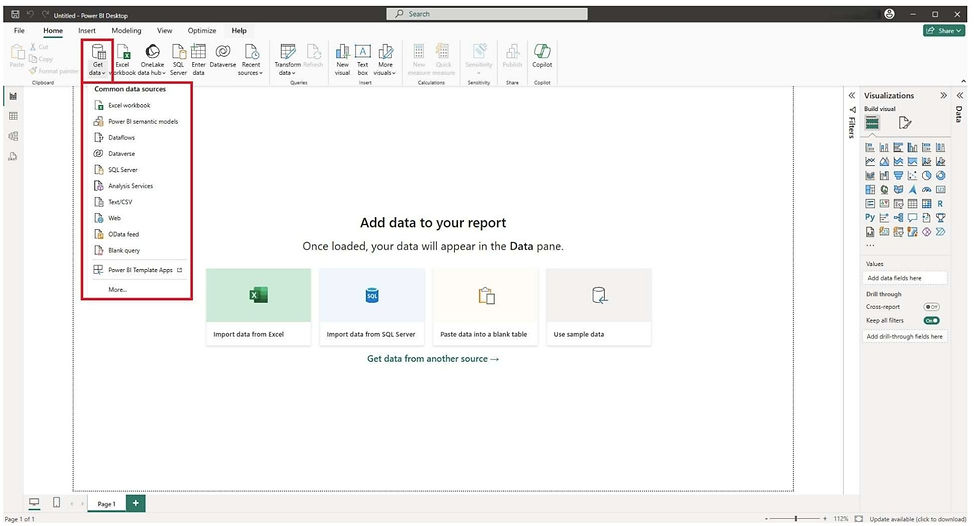
Choose the connector that matches your data source.
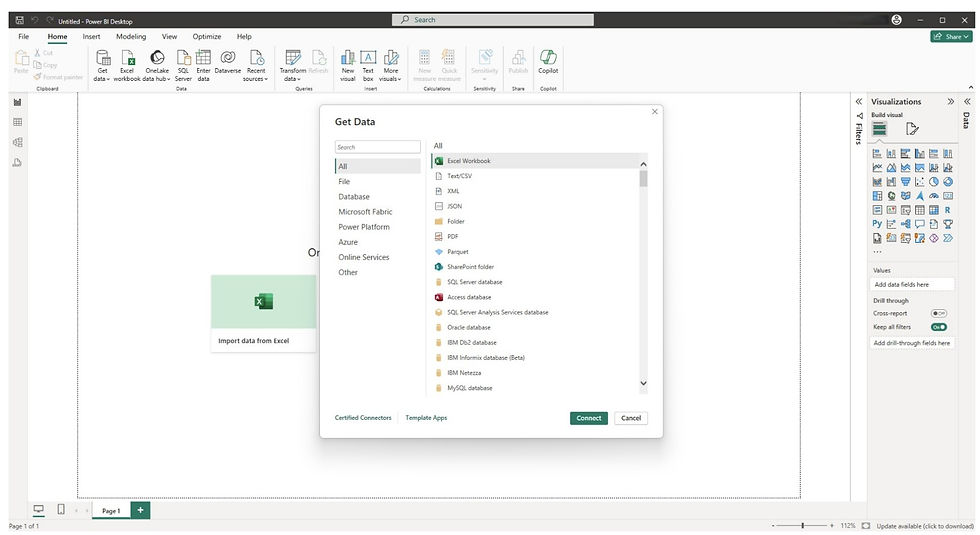
Step 2: Connect to the Source
After selecting your data source:
Excel : Browse and select the Excel file, then choose sheets/tables.
CSV/Text : Select the file and Power BI will preview the data.
Database : Provide server and database details, and sometimes credentials.
Web : Enter the URL of the web page or API.
Power BI will show a Navigator window where you can preview the data before loading it.
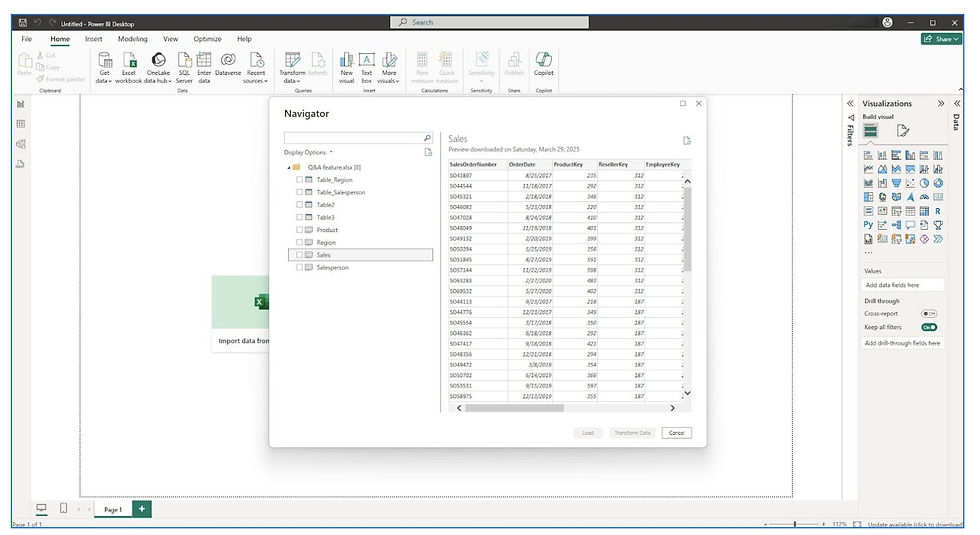
Step 3: Transform Data (Optional)
Before you load the data, you can click Transform Data to open the Power Query Editor.
Here, you can:
Clean the data (remove nulls, fix column names)
Filter rows
Merge or append queries
Change data types
Create calculated columns
This step helps ensure your data is clean and ready for analysis.
Step 4: Load Data
Once you’re happy with the preview and transformations:
Click Load → The data will be imported into Power BI’s data model.
You can now see your tables in the Fields pane and start building visualizations.
Limitations:
· Data can become stale if not refreshed regularly.
· Large datasets may exceed memory limits in Power BI Pro (1 GB per dataset).
DirectQuery Mode
What is DirectQuery Mode in Power BI?
DirectQuery mode allows Power BI to query the data source in real time, without importing the data into Power BI's in-memory model. Instead of storing data, it sends queries to the source every time you interact with a visual or report.
Key Features of DirectQuery Mode:
Real-time Access - Always shows the most up-to-date data from the source.
No Data Import - Data stays in the source; only metadata is imported into Power BI. Data stays in the
source; only metadata is imported into Power BI.
Report Size - Smaller .pbix file sizes since data isn't stored locally.
Performance - Depends on the performance of the underlying data source.
Transformations - Limited; some Power Query and DAX functions may be restricted.
Security - Leverages security settings from the data source.
When to Use DirectQuery:
When real-time or near real-time reporting is required.
When the dataset is too large to fit into memory.
When central data governance is needed (users always see live data).
When working with sources like Azure SQL, SAP HANA, or Snowflake.
Limitations of DirectQuery:
Performance - Slower than Import Mode; every interaction runs a query on the source.
Modeling Constraints - Limited transformations; some DAX functions aren’t supported.
Query Limits - Power BI service imposes timeouts (e.g., 5 minutes) and row limits.
Data Source Dependency - If the source is down or slow, the report won't work well.
Summary : Import Mode vs. DirectQuery Mode
Feature | Import Mode | DirectQuery |
Data Storage | Data is imported into Power BI (in-memory). | Data remains in the source; queried on demand. |
Performance | Fast (in-memory processing with VertiPaq engine). | Slower (each interaction sends a query to source). |
Data Freshness | Static until refreshed manually or on a schedule. | Real-time or near real-time (live data). |
File Size | Larger .pbix file (stores data). | Smaller .pbix file (only metadata stored). |
Offline Access | ✅ Yes | ❌ No (requires constant connection). |
DAX and Modeling Features | Fully supported. | Some limitations (e.g., calculated tables/measures). |
Power Query Transformations | Full capabilities. | Limited (some M functions not supported). |
Refresh Frequency | Scheduled or manual. | Not required; always up-to-date. |
Security | Handled in Power BI or via Row-Level Security. | Delegates to data source (can use source RLS). |
Data Volume Handling | Good up to 1GB per dataset (Pro); more in Premium. | Ideal for very large datasets. |
Typical Use Cases | Reports with frequent use, heavy transformations. | Real-time dashboards, operational reporting. |
Once you master importing data, you’re well on your way to creating impactful Power BI reports and dashboards.


