How to use Log4J2 in Selenium Automation Testing
What is Logging?
Logging is the process of capturing runtime information, events, and errors during application execution.
Understand the flow of the test
Track bugs and failures
Monitor application behavior
Logs usually contain:
Timestamps
Severity levels (INFO, DEBUG, ERROR, etc.)
Event descriptions
What is Log4j in Selenium?
Log4j is a Java based logging API that offers many log related functionalities like configuring different log levels, separate them by class or package, appending logs to different outputs. Log4j has been the most popular for decades, due to the flexibility and simplicity it provides. Log4j 2 is a new and improved version of the classic Log4j framework. For sure if the suffix is “2” which means it brings new features and improvements such as asynchronous logging.
Components of Log4j
Log4j has several components, including:
Loggers: Loggers are responsible for capturing the log messages and sending them to the appropriate appenders.
Appenders: Appenders are responsible for outputting the log messages to a specific destination, such as a console, file, or database.
Layouts: Layouts are responsible for formatting the log messages before we send them to the appenders.
1.Loggers
The function of the logger in Log4j is basically storing and capturing all the necessary logging information that will be generated using the framework. To truly understand its functioning, let’s dig a little deeper and discuss the logger class, and log level methods. The loggers also decide which priority is going to be captured.
Types of Loggers in Log4j
There are two types of loggers in Log4j: root loggers and named loggers.
Root Logger: The root logger is the top-level logger in the Log4j hierarchy and is responsible for capturing all log messages in the application. By default, the root logger has a log level of DEBUG and sends log messages to the console appender.
Named Loggers: Named loggers are loggers that have been given a specific name and are used to log messages for specific parts of the application. You can create them for specific packages, classes, or even individual methods. They can have a different log level and appender than the root logger, making it possible to customize the logging for specific parts of the application.
Log levels in Log4j
In Log4j, we use log levels to categorize log messages based on their severity. There are several log levels available in Log4j, each with a specific purpose and increasing severity level. The Different Log Levels in Log4j are :
ALL – This level will prioritize and include everything in the logs.
ERROR – This level will show messages that inform users about error events that may not stop the application.
WARN – This level will show information regarding warnings, that may not stop the execution but may still cause problems.
DEBUG – This level will log debugging information.
INFO – This level will log the progress of the application.
FATAL – This will print information critical to the system that may even crash the application.
2.Appenders
The appenders basically grabs information from the logger and writes log messages to a file or any other storage location. The following are some of the appenders one can use for Log4j:
FileAppender – This will append the log messages to a file.
RollingFileAppender – It will perform the same function as FileAppender, but users will be able to specify the maximum file size. Once the limit is exceeded, the appender will create another file to write the messages.
DailyRollingFileAppender – It specifies the frequency by which the messages are to be written to the file.
ConsoleAppender – In this, the appender will simply write the log messages in the console.
3.Layout
The layout is where the format in which log messages will appear is decided. There are several layouts one can use for log messages:
Pattern Layout – The user must specify a conversion pattern based on which the logs will be displayed. Otherwise, it takes the default conversion pattern in case of “no pattern specified”.
HTML Layout – In this layout, the format of logs will be in the form of an HTML table.
XML Layout – This will show the logs in an XML format.
How to Set up Log4j in Selenium
To efficiently download and set up Log4j for Selenium, follow the approach below:
1. Download Log4j from the official website https://mvnrepository.com/

2. To start using log4j2 in your project, you simply need to add the dependencies in pom.xml.
You can add the following dependency to your pom.xml file:
Log4j-api
Log4j-core

Once you update Maven project, we can see corresponding .jar files in Maven Dependencies folder.

Configuration of the Log4j2:
log4j2 configuration can be created by using properties or through a xml file in src/test/resources.
A. Creating Log4j2 Properties file:
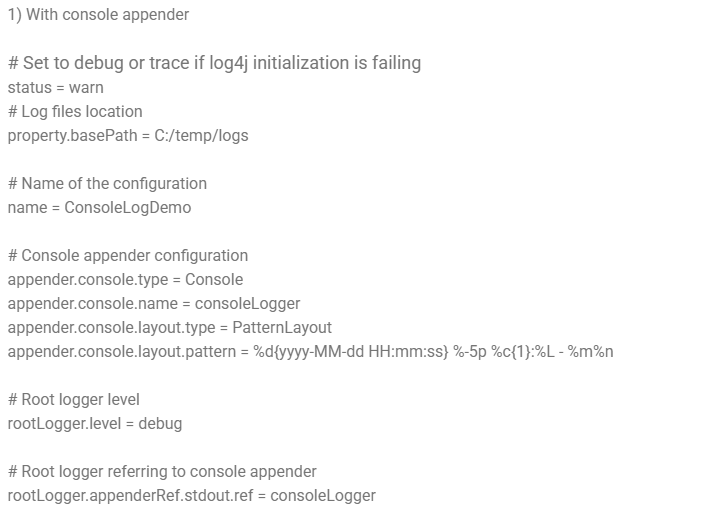
Once we added dependencies in pom.xml then we need to add log4j2 properties file which will be used by Log4j API during the execution of testcase to log the activities. A basic log4j2.properties file starts with a name, optional properties to be used in other parts of the file, and appender declarations. Next, we need to configure both the appenders to write log messages to the console and a file.
1. To generate logs with console appenders
2. To generate logs with file and console appenders
writing log messages in the console and file
B. Creating Log4j2.xml file:
The properties file does not support some advanced configuration options like Filters, custom Error Handlers and a special type of appenders, i.e. AsyncAppender. ErrorHandlers defines how errors in log4j itself are handled. The level range filter is really missing for property files. In the Log4j2.xml first it creates a folder ‘logs’ and fileLogger writes the message to Mylogs.log. If the file exceeds 10MB or the date changes, it rolls over to a new file (e.g., app-2025-05-22-1.log.gz) and old logs older than 30 days are deleted automatically. PatternLayout formats messages.

How to Use Log4j2 in Selenium
After setting up this log4j2.properties or xml file in resource folder then we need to create a Logger Reader class in utility folder to use in test cases. Based on logger severity we can place the loggers in Test cases. We can use loggers in code by creating an instance of the logger using the Logger Reader class.


Why Use Log4j2 in Selenium Automation?
Log4j2 is a powerful tool that significantly improves the observability of your Selenium test automation.
Useful for test run auditing
Enables clean separation of console and file logs
The setup is easy and free of cost, making it more accessible for faster debugging.
Enables us to understand the test case run.
Happy Learning!!! With Logger :)


