Creating Postman Flows for LMS API Application with Program, Batch, Class, and User Modules
In this blog, we’ll explore how to create Postman Flows to test LMS API applications effectively. This guide walks through how to organize and automate the testing of these four essential modules User, Program, Batch, Class within the LMS API.
Table of Contents
Introduction to Postman Flows
Prerequisites
Setting Up Postman Collections for LMS Modules
Creating API Requests for Program, Batch, Class, and User Modules
Creating Postman Flows for Automation
Running and Monitoring the Flow
Sharing and Collaboration with Team
Conclusion
1. Introduction to Postman Flows
Postman Flows is a feature that allows you to visually map out and execute API request sequences. With Postman Flows, you can combine multiple requests into one continuous process, which is ideal for testing the functionality of interconnected API modules like Program, Batch, Class, and User in an LMS application.
2. Prerequisites
Before you begin, ensure you have the following ready:
Postman Installed: If you don't have Postman installed, download and install it .
LMS API Documentation: You need API endpoints for all four modules (Program, Batch, Class, and User) with details on authentication methods, request formats, and response structures.
Authentication Keys: Make sure you have valid credentials for authenticating against the LMS API (Here I used Bearer Token for Authentication).
Postman Account: Useful for collaboration and cloud sync.
3. Setting Up Postman Collections for LMS Modules
To manage your LMS API tests effectively, organize your requests into separate collections based on the LMS modules.
Steps to Set Up Collections:
Open Postman and create a New Collection called “Learning Management System ”
Inside the collection, create folders for each module:
Program Module
Batch Module
Class Module
User Module
This structure will make it easier to maintain and navigate your requests.
4. Creating API Requests for Program, Batch, Class, and User Modules
Here’s an example of how to structure API requests for each of the modules.
Program Module:
Create Program:
Request Body:
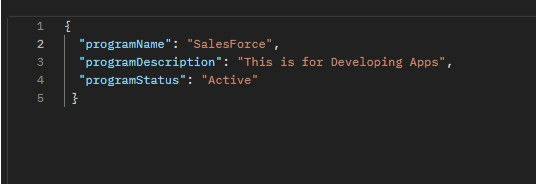
Test Script for Program Creation: Here I saved dynamically generated ProgramId and ProgramName in collection Variables which will be used in Creating Batch.

Batch Module:
Create Batch:
Method: POST
URL: https://lms-hackthon-feb25-803334c87fbe.herokuapp.com/lms/batches
Request Body:
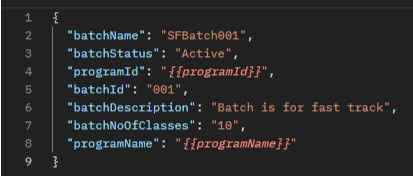
Test Script for Batch Creation: Here I saved dynamically generated batchId and batchName in Environment Variables which will be used in Creating Class.

Class Module:
Create Class:
Request Body:
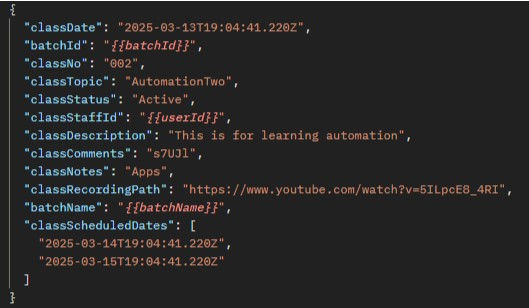
Test Script for Class Creation:
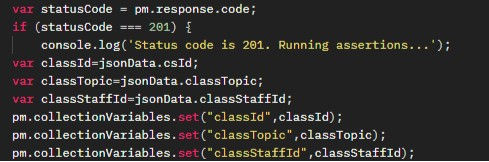
User Module:
Create User:
Request Body:

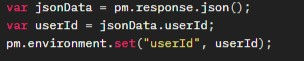
Test Script for User Creation: Here I saved dynamically generated userId in Environment Variables which will be used as staffId in Creating Class.
5. Creating Postman Flows for Automation
Now that we have individual requests for each LMS module, let's create Postman Flows to automate and sequence them.
Steps to Create Postman Flow:
Open the Flows tab in Postman.
Drag and drop requests from your Program, Batch, Class, and User folders into the flow builder.
Define the order in which the requests will be executed:
Start with User Creation → Program Creation → Batch Creation → Class Creation.
You can also add conditions, loops, or delays between requests if necessary.
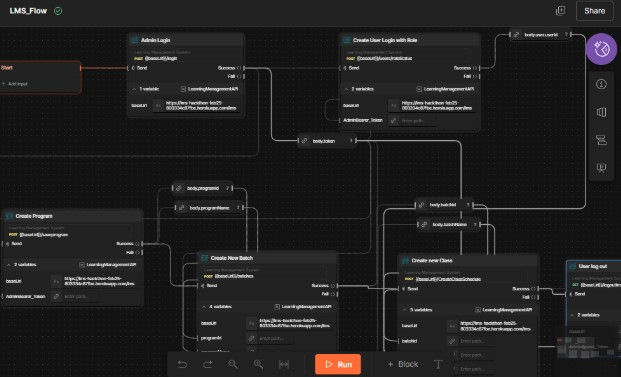
Example Flow:
Step 1: Create User (POST to /users)
Step 2: Create Program (POST to /programs)
Step 3: Create Batch (POST to /batches)
Step 4: Create Class (POST to /classes)
6. Running and Monitoring the Flow
Once your flow is ready, you can execute it to test the LMS API end-to-end.
Run the Flow: Click the "Run" button in Postman to execute your flow.
Monitor Results: As each request is executed, you can see the results, including whether the response data matches expectations.
Automate Testing with Monitors:
To run the flow on a schedule, you can set up Postman Monitors. This will allow you to continuously test the LMS API.
Create a Monitor to run the collection at a scheduled time.
View test results to ensure the API is functioning as expected over time.
7. Sharing and Collaboration with Team
Sharing your Postman flows with your team ensures everyone is on the same page. You can easily export collections or share them directly in Postman.
Sharing Your Flow:
Export the Flow: Click on the three dots in the Flow section and select "Export."
Share with Team: You can generate a sharable link or invite team members to view the collection. Here is the Link for LMS Flow.
8. Conclusion
By leveraging Postman Flows, you can automate your tests, reduce manual errors, and streamline the API testing process.
Through this guide, you've learned how to:
Create Postman requests for the key LMS modules.
Structure and automate tests using Postman Flows.
Monitor the health of your LMS API continuously.
Share your tests for team collaboration.
By following these steps, you ensure that your LMS application delivers consistent, reliable, and error-free experiences to users.
Bonus Tips:
Environment Variables: Use variables for dynamic data (e.g., user Id, programId, BatchId, ClassId ,Bearer tokens) to make your tests reusable across different environments.
Data-Driven Testing: Import CSV/JSON files in Postman for running tests with multiple datasets (e.g., testing multiple users).
Performance Testing: Use Postman’s Runner feature to test the API performance under different loads.
Happy testing!


