Building an AI Agent in n8n: A Practical Guide for Data Analysts


As a data analyst, you know that much of your time is wasted doing things that aren't data analysis, like sending the same reports, finding meeting times, and writing "as per my last email" ad nauseam.
Wouldn't it be nice if that could all be done for you?
Well, that's exactly what I built with n8n, an open-source tool for automation, and, combined with an AI agent that understands English and performs tasks (like sending emails, checking calendars, and remembering context), no advanced coding is required.
Here's how it works.
First, What Even Is an AI Agent?
Most people are familiar with chatbots, where you input a query and get a simple response. An AI agent is much more than a talking tool. An AI agent acts on your commands.
If you say, "Send a meeting reminder to my team," it will send an email. If you say, "Schedule a review for 3 pm tomorrow," it will create the calendar invite.
As data analysts, many of our recurring tasks follow predictable schedules and processes. Reports are sent every Monday. Stakeholder meetings are scheduled every sprint. KPI alerts notify people when numbers drop. An agent can do all of this for you while you focus on more important things.
Understanding How an AI Agent Works
But first…some background on how AI agents work
Before we jump into creating workflows, it’s useful to first know what happens behind the scenes when an AI agent receives a request.
Conceptually, an AI agent goes through three stages:
· Perception
· Brain
· Action

How This Model Relates to My n8n Agent
In the project I built, the Chat Trigger acts as the user input. GPT-4o Mini serves as the Brain, interpreting requests and planning actions. The Simple Memory node stores context from previous conversations. Gmail and Google Calendar act as tools in the Environment, allowing the agent to perform real-world actions such as sending emails and scheduling meetings. Together, these components transform the agent from a chatbot into a practical assistant capable of completing tasks.
Perception: Understand what is being requested
It all starts with a prompt/request from the user.
For example:
“Schedule a data review meeting for tomorrow at 2 PM on Google Calendar and send an invite to my team.”
The agent receives the input and converts it into data that the AI model can understand. We call this stage Perception. This is similar to the agent listening and processing what you said.
Brain: Reason about the request and create a plan
Once the agent perceives what is requested, it begins to reason about what needs to happen to fulfill the request.
Rather than look at the request as one large task, the AI agent will break the request down into a series of smaller steps:
· Gather meeting date and time
· Create a calendar event
· Generate Google Meet link
· Gather attendees
· Send invitations
We call this process Reasoning.
Next, the agent determines what order those tasks need to happen in. We call this Planning.
For example, the agent may decide on the following plan:
1. Create a calendar event
2. Generate Meet link
3. Send invitations
4. Reply with a success message
Reasoning and Planning make up the “brain” of the AI agent.
Action: Perform the work by using external tools
After the agent has a plan, it will begin to take action by using the tools you connect to Agentflow.
Examples of actions the agent can take:
· Send emails using Gmail
· Schedule meetings on Google Calendar
· Read data from databases
· Write to spreadsheets
· Send messages to Slack
This is the part where the AI moves from answering questions to actually doing work.
Memory
The last piece of the puzzle is memory. When memory is disabled, each message the agent receives is treated as a new conversation.
By enabling memory, the agent can recall information from previous messages, such as:
· Names
· Preferences
· Projects the user is working on
· Requests the user has made
Environment
The environment includes all the tools and systems the agent can connect to. Examples include Gmail, Google Calendar, Slack, databases, APIs, business applications, and more.
Why n8n?
n8n is a great automation tool for those without a programming background. It features a drag-and-drop interface similar to a digital whiteboard. You connect nodes to build workflows. It even has built-in support for OpenAI models. For companies that have concerns over data privacy and security, you can self-host n8n, thanks to it being an open-source product.
You don't need to have a programming background, but you do need to be prepared to troubleshoot by interpreting error prompts.
What We're Building
You will have an AI agent that can do the following:
- Chat with you
- Recall information that was provided during the current session
- Send you emails
- Schedule meetings and generate Google Meet links
Step 1: Set Up Your Workflow
The first thing you need to do is open n8n and start a new workflow. For the first two nodes, you will need:
*Chat Trigger
*AI Agent
Chat Trigger creates the interface through which you can chat with your agent. AI Agent determines and orchestrates the subsequent actions. To build the base structure of your workflow, connect the Chat Trigger to your AI Agent.

Step 2: Give It a Brain (OpenAI)
The AI Agent needs a language model to understand what you're saying and figure out what to do. Add an OpenAI Chat Model node and connect it to your AI Agent.
Configuration is straightforward:
- Model: GPT-4o Mini works well and is cost-effective for this
- Authentication: You'll need an OpenAI API key (grab one from platform.openai.com if you don't have one)
Once connected, your agent can understand natural language. You can ask it things in plain English, and it'll know what you mean.
Step 3: Give It a Memory
By default, each message your agent receives is treated as if it's the first time you've ever spoken. That gets frustrating fast.
Add a Simple Memory node and connect it to your AI Agent. Then set a session key — this is just a label that ties a conversation together. Something like `my session` is fine for testing.
Now watch what happens:

Simple, but genuinely useful. The agent can now carry context across a full work session — your name, your project, your preferences — without you having to repeat yourself.
Step 4: Connect Gmail
This is where it gets fun. Add a Gmail node, authenticate it with your Google account, and connect it to the AI Agent. Once it's live, you can do things like:

The agent will draft and send that email. No opening Gmail, no copy-pasting addresses, no subject line deliberation. It can also draft emails without sending them if you'd prefer to review first — just specify that in your prompt.

Step 5: Connect Google Calendar
Add a Google Calendar node, authenticate it, and connect it to the AI Agent.
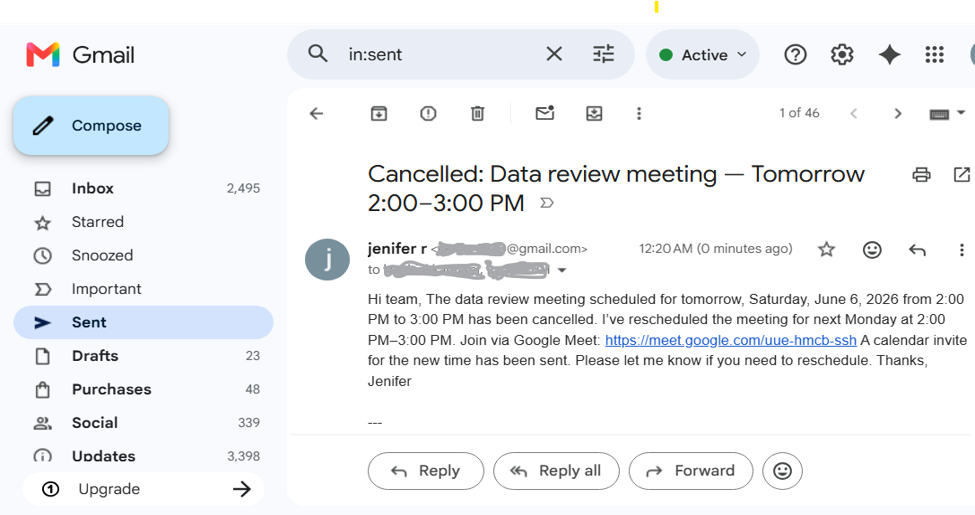
Now you can say things like:
"Schedule a data review meeting tomorrow at 2 PM and include a Google Meet link."

The agent creates the event, generates the Meet link, and it shows up in your calendar. You can even have it invite specific people if you give it their emails.
Real Ways This Helps Analysts Day-to-Day
Once your agent is running, here's what a typical use case might look like:
Monday morning: You ask your agent to send the weekly summary email to stakeholders. It pulls the template you've told it about, fills in the context, and sends it — while you're still on your first coffee.
Mid-week: A KPI drops below your alert threshold. Your agent catches it, drafts a quick heads-up to your manager, and creates a review slot on the calendar.
End of sprint: You need to schedule a retrospective with four people. One prompt, and the invite is out with a Meet link attached.
None of this is magic. It's just connecting the tools you already use to a layer of intelligence that can act on them.
Benefits of AI Agents for Data Analysts
Reduce repetitive administrative work
Improve communication efficiency
Automate meeting scheduling
Maintain context through memory
Allow analysts to focus on insights instead of routine tasks
A Few Things to Keep in Mind
You control what it can do. The agent only has access to the tools you explicitly connect. If you don't give it access to your calendar, it can't touch it. Think of it like giving a very capable assistant a specific set of keys.
Start small. Build the workflow, test it with low-stakes prompts, and expand from there. Don't connect your primary work email and immediately ask it to send 50 messages.
It's not perfect. Sometimes the agent misunderstands a request or formats an email oddly. Review a few outputs before you fully trust them and add clearer instructions to your agent's system prompt when you spot patterns.
Where to Go From Here
Once you're comfortable with the basics, there's a lot more you can do:
- Connect a database or spreadsheet so the agent can actually query your data
- Add Slack so it can send messages to channels directly
- Build scheduled triggers so reports go out automatically, no prompt required
- Layer in conditional logic so the agent behaves differently based on what it finds
The core workflow that you built here is the foundation. Everything else is just adding more tools to the belt.
Wrapping Up
Building this AI agent in n8n showed me that AI can be much smarter than a chatbot. By combining GPT-4o Mini, memory, Gmail, and Google Calendar, I created an assistant that can remember conversations, send emails, and schedule meetings by using simple natural language requests.
As a Data Analyst, I see AI agents as tools that enhance productivity, not as a replacement for analysts. They can automate repetitive tasks such as report distribution, meeting scheduling, and routine follow-ups, allowing analysts to spend more time on insights and decision-making.
This project was a great introduction to AI-powered automation, and it opened the door to many future possibilities, such as connecting databases, dashboards, and business applications. Sometimes, a few hours invested in automation can save hundreds of hours of repetitive work over the long run.


