Boost your data analysis with these essential Excel power tools and functions as an Analyst
In the world of data analysis Excel is the tool that many data analysts rely on because its accessibility and versatility make it easy to access for professionals at all levels. Excel when used correctly, can be a huge time saver. This blog guide you on the power tools within excel, by mastering these key functions can significantly boost your efficiency and accuracy. Let's dive into some of the most important Excel functions every data analyst needs to be proficient in.
1.Basic Data Aggregation: The Foundation of Understanding
Before complex analysis, you often need a high-level overview of your data. Excel's basic aggregation functions provide this crucial first step.
SUM: Sum function is used to add all the numbers in a range of cells.
syntax: SUM(number1,number2,....)
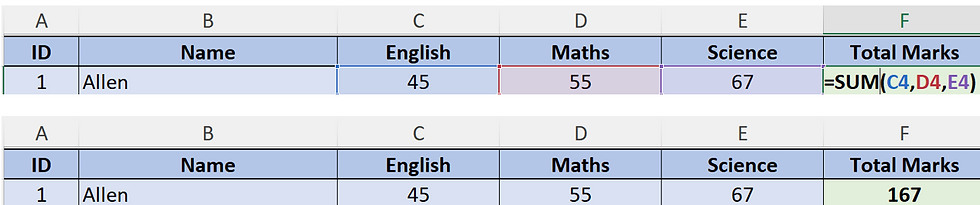
AVERAGE: Calculates the arithmetic mean of a set of numbers.
syntax: AVERAGE(number1,number2,....)

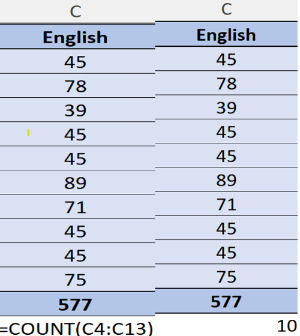
COUNT: The COUNT function in Excel is used to count the number of cells within a range that contain numbers. It specifically ignores empty cells and cells containing text, logical values, or error values.
syntax: COUNT(value1,value2,...)
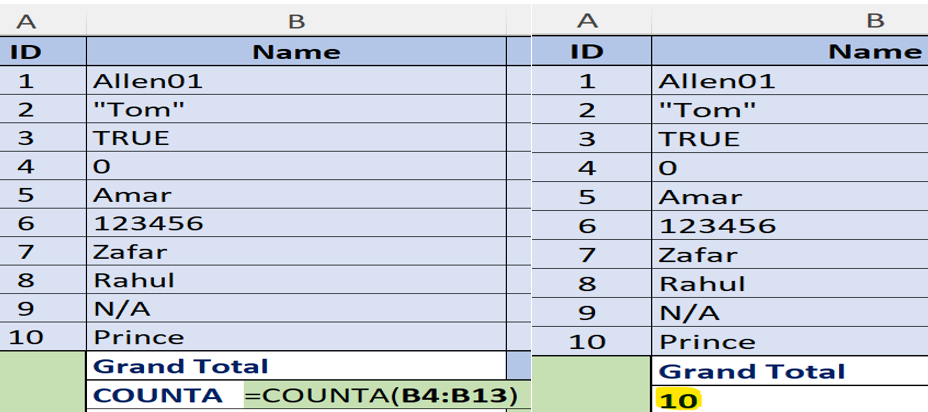
COUNTA: The COUNTA function in Excel is used to count the number of cells in a range that are not empty. This means it counts cells containing any type of information, including:
Numbers: Integers, decimals, etc.
Text: Words, letters, symbols, etc.
Dates: Valid date formats.
Logical Values: TRUE and FALSE.
Empty Text Strings: Cells that contain a formula that results in "".
syntax: COUNTA(value1,value2,...)
2. Conditional Analysis: Unveiling Insights Based on Criteria
Moving beyond simple aggregation, conditional analysis allows you to analyze data based on specific conditions, providing more targeted insights.
Reference excel to practice the below functions
IF: Performs a logical test and returns one value if TRUE and another value if FALSE.
Syntax: IF(logical_test, [value_if_true], [value_if_false])

SUMIF: Sum the values in a range that meet a specific criterion.
syntax: SUMIF(range, criteria, [sum_range])

COUNTIF: Count the number of cells within a range that meet a specific criterion.
Syntax: COUNTIF(range, criteria)

3. Data Manipulation: Connecting and Transforming Your Data
Often data resides in different places or needs restructuring for effective analysis. These functions are crucial for bringing data together and preparing it for deeper exploration.
VLOOKUP: Searches for a value in the first column of a table and returns a value in the same row from a specified column.
Syntax: VLOOKUP(lookup_value, table_array, col_index_num, [range_lookup])

INDEX: Returns a value or the reference to a value within a table or range.
Syntax:INDEX(array, row_num, [column_num]

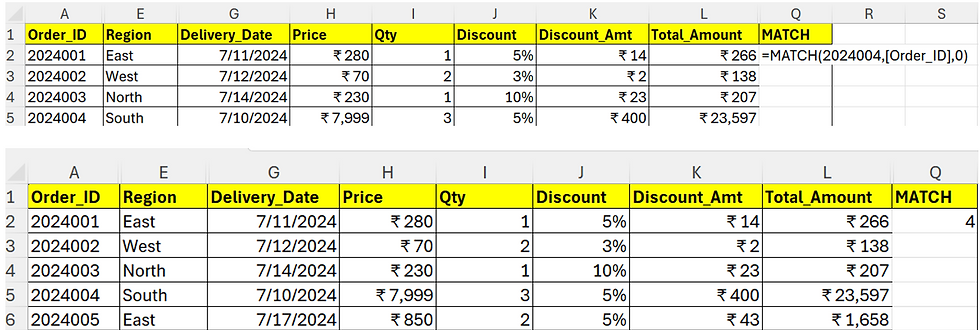
MATCH: Searches for a specified item in a range of cells and then returns the relative position of that item in the range. Often used in conjunction with INDEX.
Syntax: MATCH(lookup_value, lookup_array, [match_type])
4.Date & Time Functions: Analyzing Trends Over Time
Time-based analysis is fundamental in many business contexts. Excel's date and time functions allows to extract and manipulate temporal information.
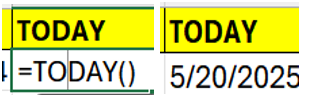
TODAY: Returns the current date.
Syntax: =TODAY()
NOW: Returns the current date and time.
Syntax:NOW()

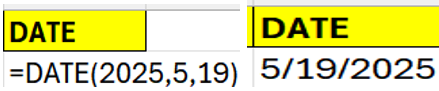
DATE: Returns a serial number that represents a particular date.
Syntax:DATE(year, month, day)
YEAR: Returns the year of a date.
Syntax: YEAR(serial_number)

MONTH: Returns the month (as a number from 1 to 12) of a date.
Syntax: MONTH(serial_number)

DAY: Returns the day of the month (as a number from 1 to 31) of a date.
Syntax:DAY(serial_number)

5. Text Functions: Cleaning and Manipulating Text Data
Raw data contains inconsistencies or needs to be restructured for analysis. Text functions are essential for cleaning and preparing textual information.
LEFT: Returns a specified number of characters from the start of a text string.
Syntax: LEFT(text, [num_chars])

RIGHT: Returns a specified number of characters from the end of a text string.
Syntax: RIGHT(text, [num_chars])

MID: Returns a specified number of characters from a text string, starting at a specified position.
Syntax: MID(text, start_num, num_chars)

LEN: Returns the number of characters in a text string.
Syntax: LEN(text)

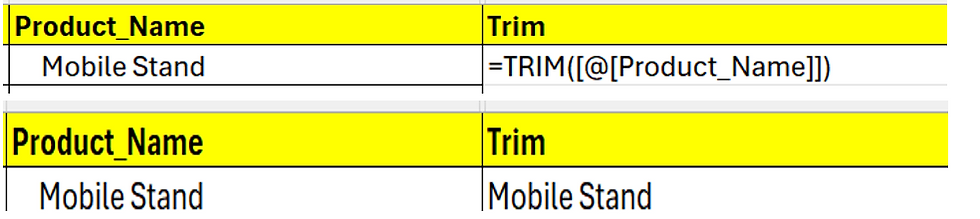
TRIM: Removes all spaces from a text string except for single spaces between words
Syntax: TRIM(text)
Mastering these fundamental Excel functions is a significant step towards becoming a proficient and efficient data analyst.


