Automating Web Interaction with UiPath
Before looking into UiPath, we need to understand what RPA is.
What is RPA?
RPA(Robotic Process Automation), The automated workflow created in RPA is the software itself. RPA Testing is part of the Software Development Lifecycle, which aims to find and resolve issues as early as the development stage.
UiPath
UiPath is a tool that provides a way to create software robots(bots) that do repetitive tasks. UiPath offers web automation, desktop automation, sap automation, email automation, and no-code automation. While UiPath is best known for RPA it provides a robust platform for automated testing. We can
1. Build test cases
2. Automate end-end workflows
3. Data-Driven testing
4. Integrate CI/CD tools like Jenkins.
Why use UiPath?
UiPath offers a wide range of features. One of the main features is it offers a visual workflow builder, drag-and-drop, and no complex code needed. It supports Data-driven testing which means we can test multiple input sets. It also offers built-in assertion and logging capabilities, allowing us to check the outcome. It also offers exception handling and retry mechanisms, even if inconsistent or slower web element tests are resilient. Finally, Test Manager integration allows seamless integration between test cases and requirements.
UiPath Test Suite:
UiPath Test Suite is a tool for automating and managing testing workflow. The suite is AI-powered, and it is efficient in both traditional and RPA workflow. The key components in UiPath Test Suite are,
Test Manager:
In Test Manager, we plan, manage, and analyze tests. It helps to define test cases and analyze results to ensure everything is working the way we expected.
Studio:
The studio is where actual automated tests are built the same ways as RPA Workflow.
Orchestrator:
Orchestrators execute test cases from the studio on testing robots. We can execute it by scheduling or integrating it through CI/CD pipelines.
How to install UiPath?
To Install UiPath, go to the UiPath website choose the UiPath community edition and sign up. Install the UiPath Studio desktop application.To create the first project, Click the new project and choose the process.

A pop-up window opens with a blank process. In this blog, I will focus on web automation. For the demo, I have taken a UiBank application.

Once the process is created it takes us to the UiPath Studio window. At the top there is a button called Recorder, with the help of the recorder we capture interaction with UI elements, specify values for those fields, and confirm actions to save them.

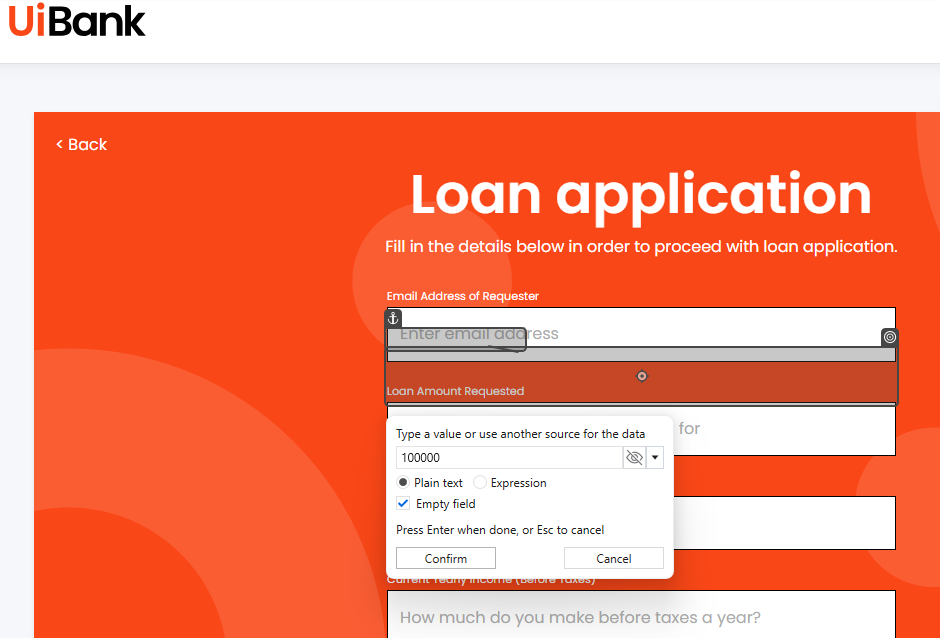
After recording all fields, click save and return to the studio.

Click Run to see if the captured action works as expected. It takes us to a web browser, where it performs the captured actions.

Data-Driven Testing
Test Manager allows us to create multiple test cases, making it easy to handle complex testing scenarios. The Test manager supports Data-driven test RPA workflow and application across various scenarios. A pre-requisite for data-driven testing is that we need a recent Orchestrator version. UiPath makes data-driven testing easy. It pulls the data from Excel, CSV, or a database and uses the data to perform our tests and check if everything behaves the way we expect.
In UiPath Studio, at the bottom-right panel, we define Arguments in the Arguments tab. These arguments act as placeholders for input values and should match the column names in the CSV. This way, each row is passed to the test case during execution.


Advance features in UiPath:
Workflows for Test Reporting:
Clear and detailed reports like screenshots of failed tests, or exception logs are needed in automation tests. In UiPath reports, Failed test cases triggered automatic logs and screenshots for debugging purposes. That way we can ensure everything is fine during the testing process. UiPath allows customization of test execution reports and integrates those reports in Jira, or Excel.
Continuous Integration and Continuous Deployment (CI/CD):
UiPath can be integrated with CI/CD tools like Jenkins. Whenever there's a new code commit, we can set up a job for our automation tests to run . It is a great way to find bugs early and make test automation part of our continuous delivery process. By connecting UiPath to a Jenkins pipeline. every time a new commit is pushed and tests run automatically and the results will be visible right in Jenkins.
Common challenges in UiPath Web Automation:
Testers often face challenges when working with web applications.
1. Websites update their UI frequently, which causes selectors to change(Dynamic selector), so tests may fail. To handle this we use anchor-base selectors in UiPath which are reliable across UI changes.
2. Web pages don’t always load at the same speed if a bot tries to interact with an element before it appears, tests will fail. To handle this, we can use Retry Scope which retries until an element is found.
3. When dealing with credentials like username or password, it is important to store them securely. UiPath supports Orchestrator Assets to store the credentials safely.
UiPath is not a replacement for selenium or any other tools. It just offers a different approach and is close to automating real business workflow. UiPath makes it easier to get started.
Keep exploring!!


